How to Sign Up
Before You Begin
User Eligibility
Ensure you are a registered Quick Hub account holder—this includes paid, free, or trial users. If you only signed up for a newsletter or webinar without creating an account, you won't be able to sign in.
How to Sign In
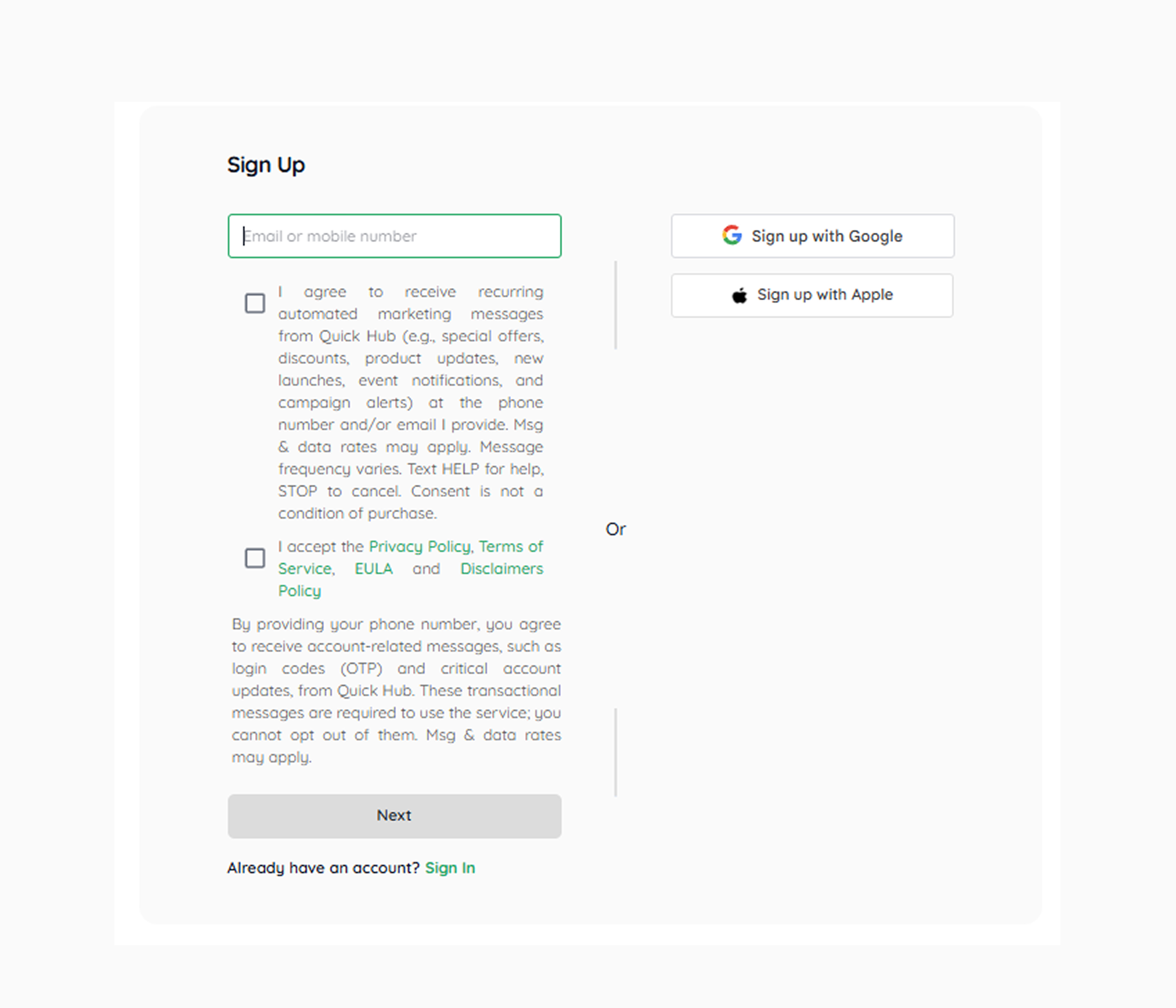
- Open the Quick Hub app on your device, or navigate to the Quick Hub (quickhub.ai) login page in your browser.
-
For existing users, enter your “Email / Phone Number & Password.
-
New users can sign up using their Google or Apple account or by entering their phone number.
Note — If you don't remember your password, click Forgot Password? to reset it.
-
Click Next.
-
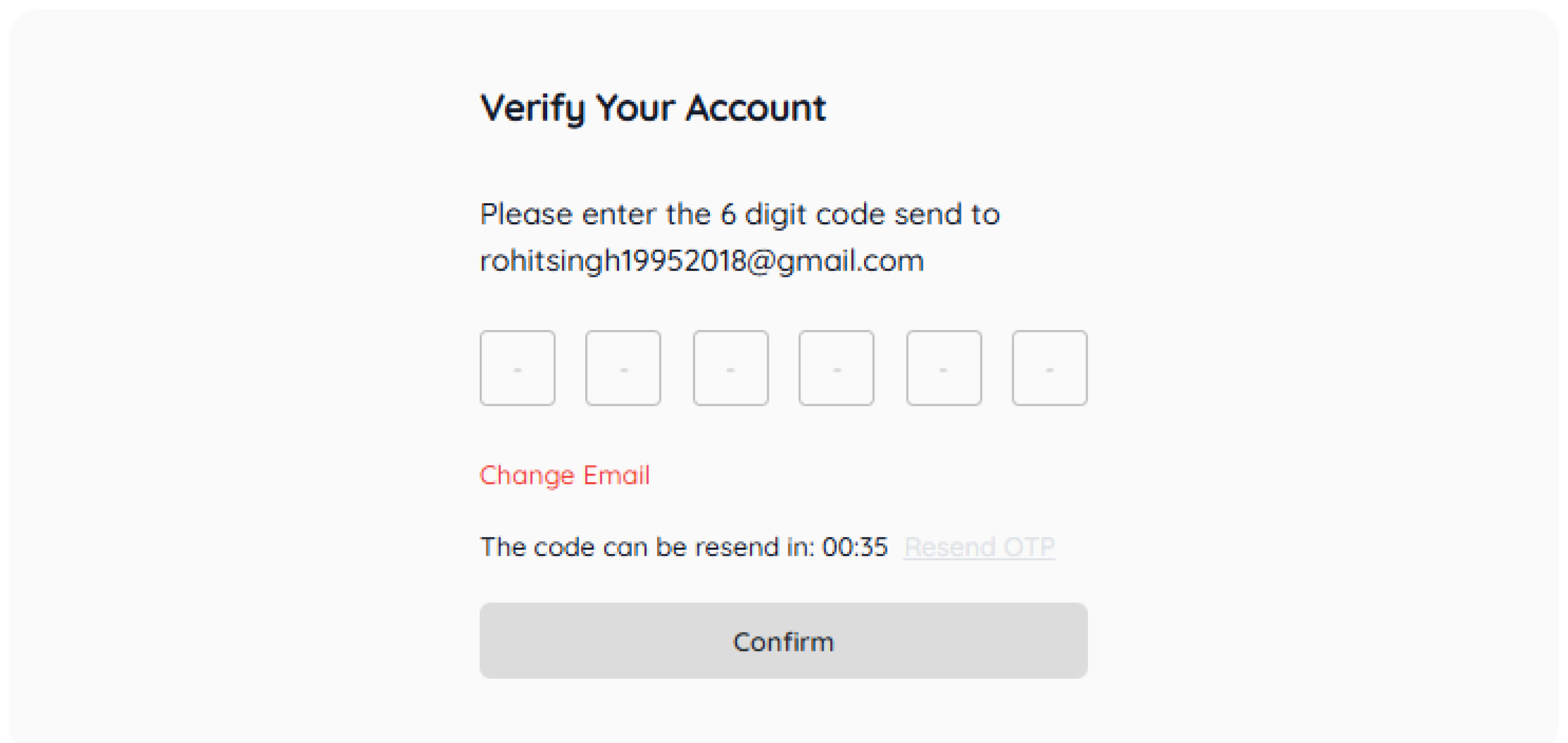
Create a password, then click Confirm. An OTP will be sent to your registered email.
-
Verify the OTP, and click Confirm.
-
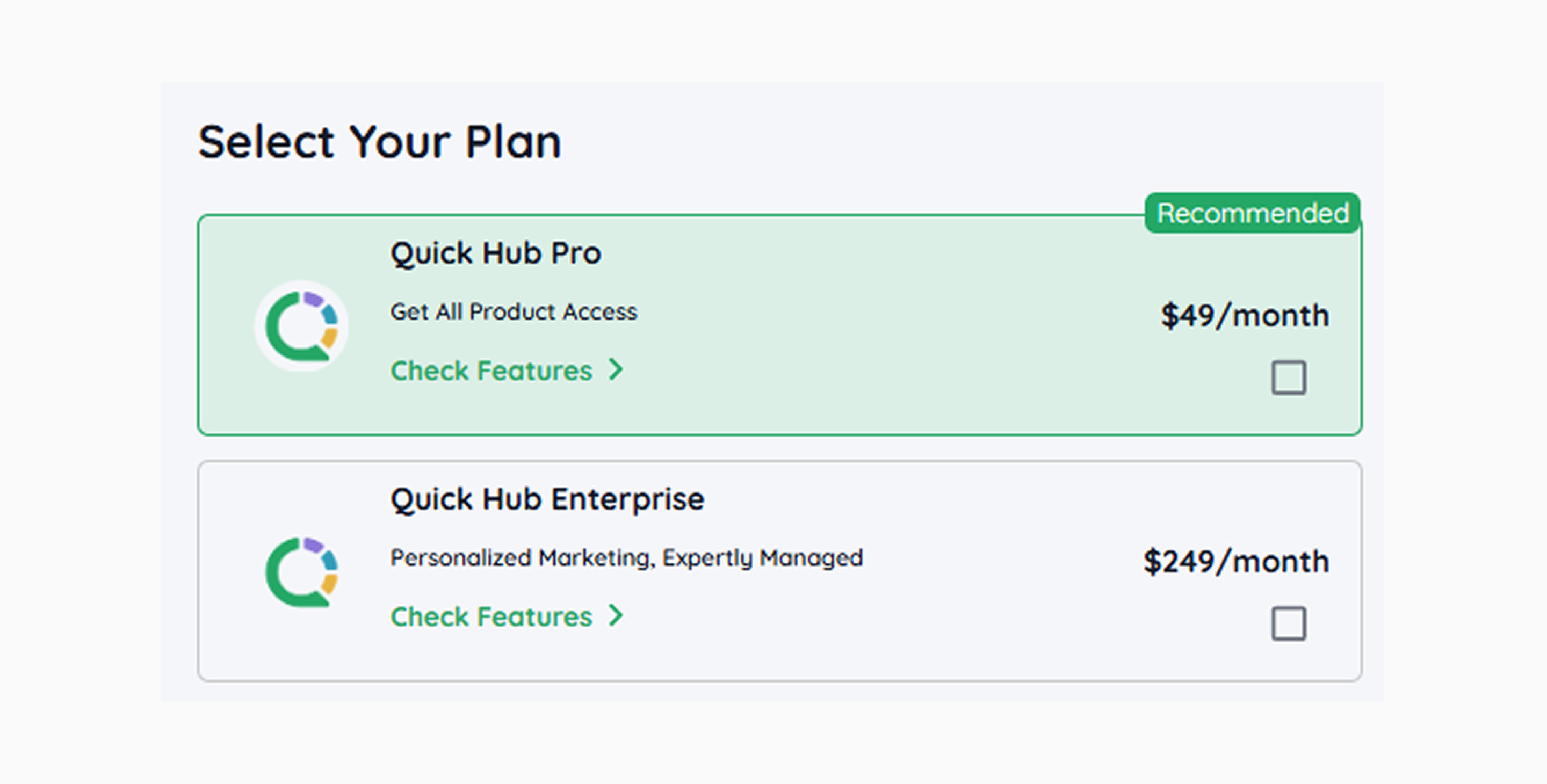
Select your Plan. Based on your requirements, you can choose from Quick Hub Pro or Quick Hub Enterprise.
-
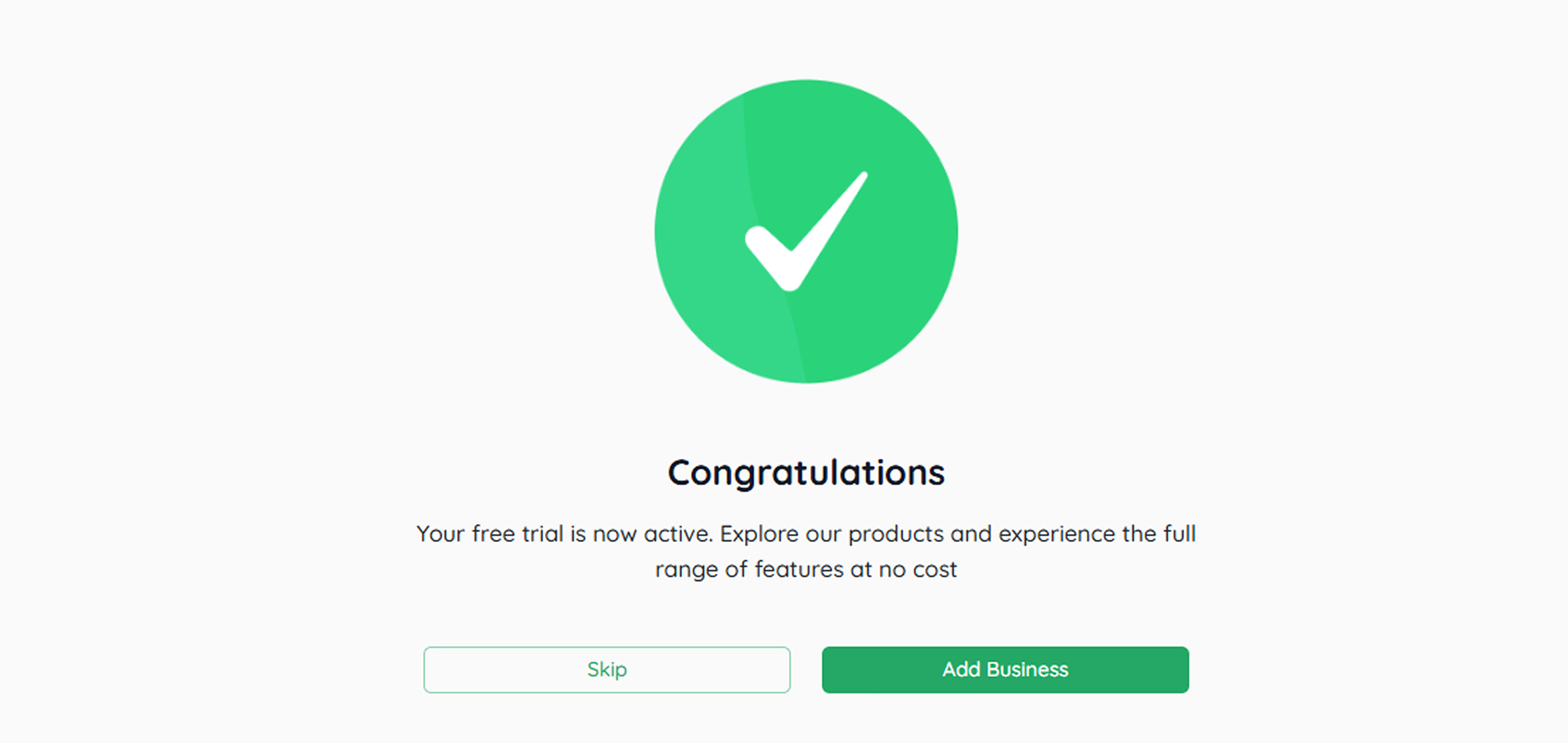
Select Start Free Trial.
-
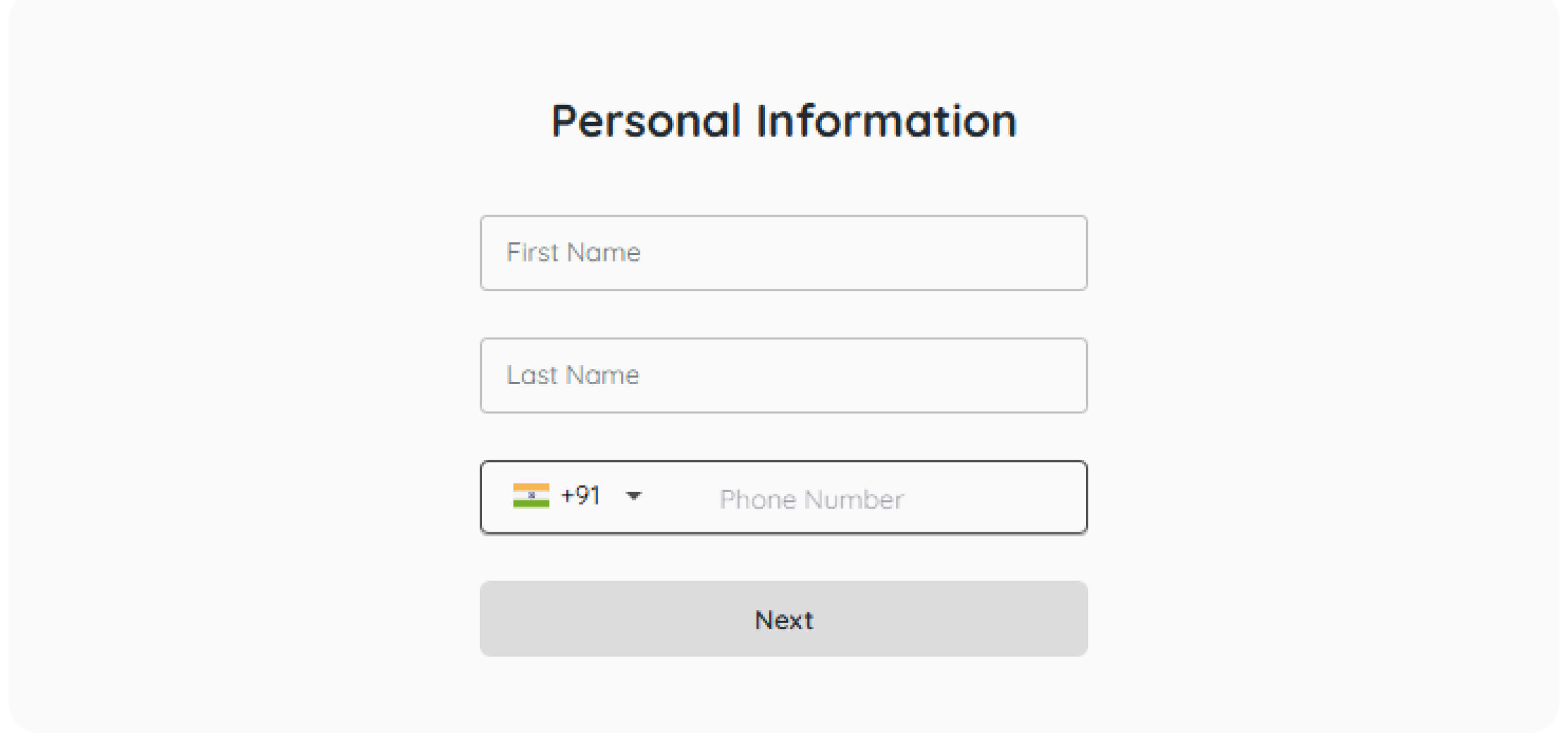
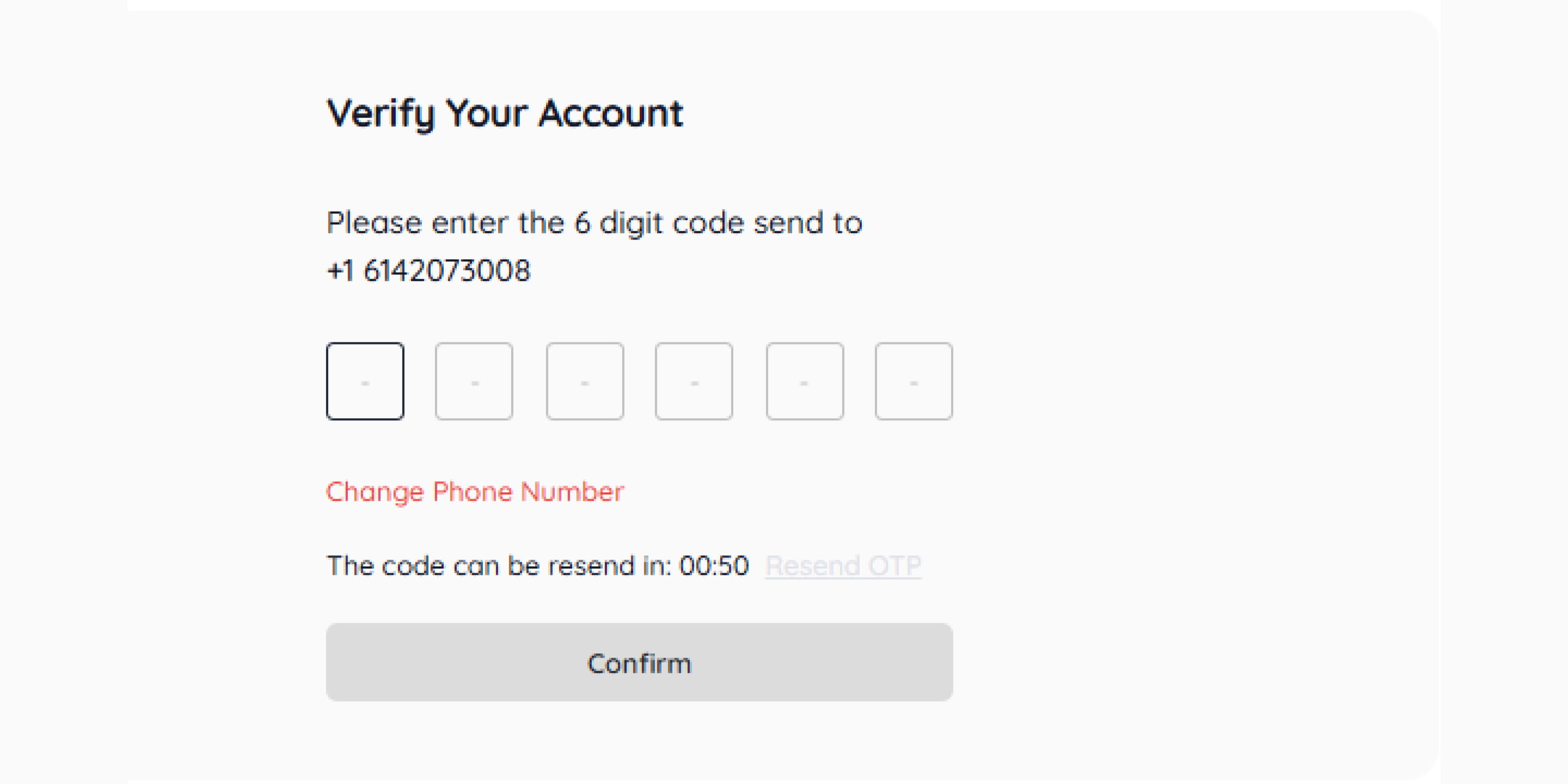
Enter Personal Details.
- Enter the OTP.
- Now, click on Add Business.
- For an online business, you can add products on Amazon and Flipkart by clicking on Add Products.
- For a business website, you can add it by clicking on Website—Add Business.
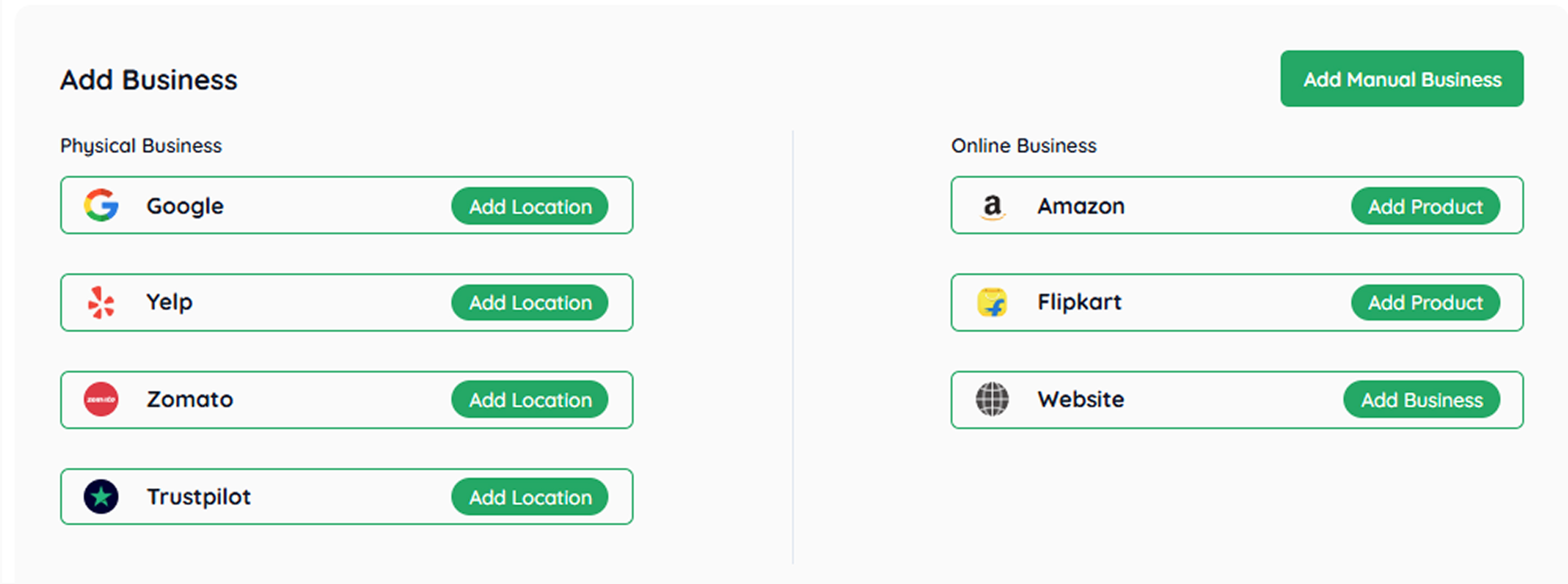
- For a physical business, you can add the location through Google, Yelp, Zomato, and Trustpilot by clicking on Add Location.
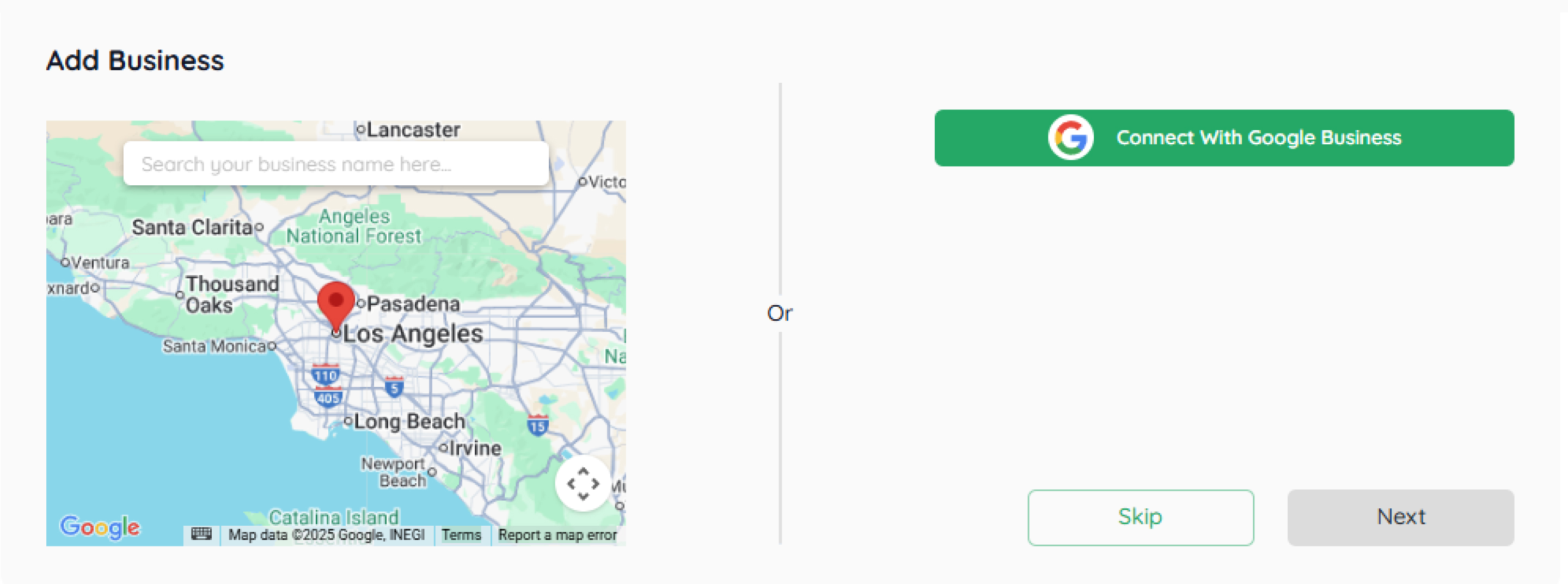
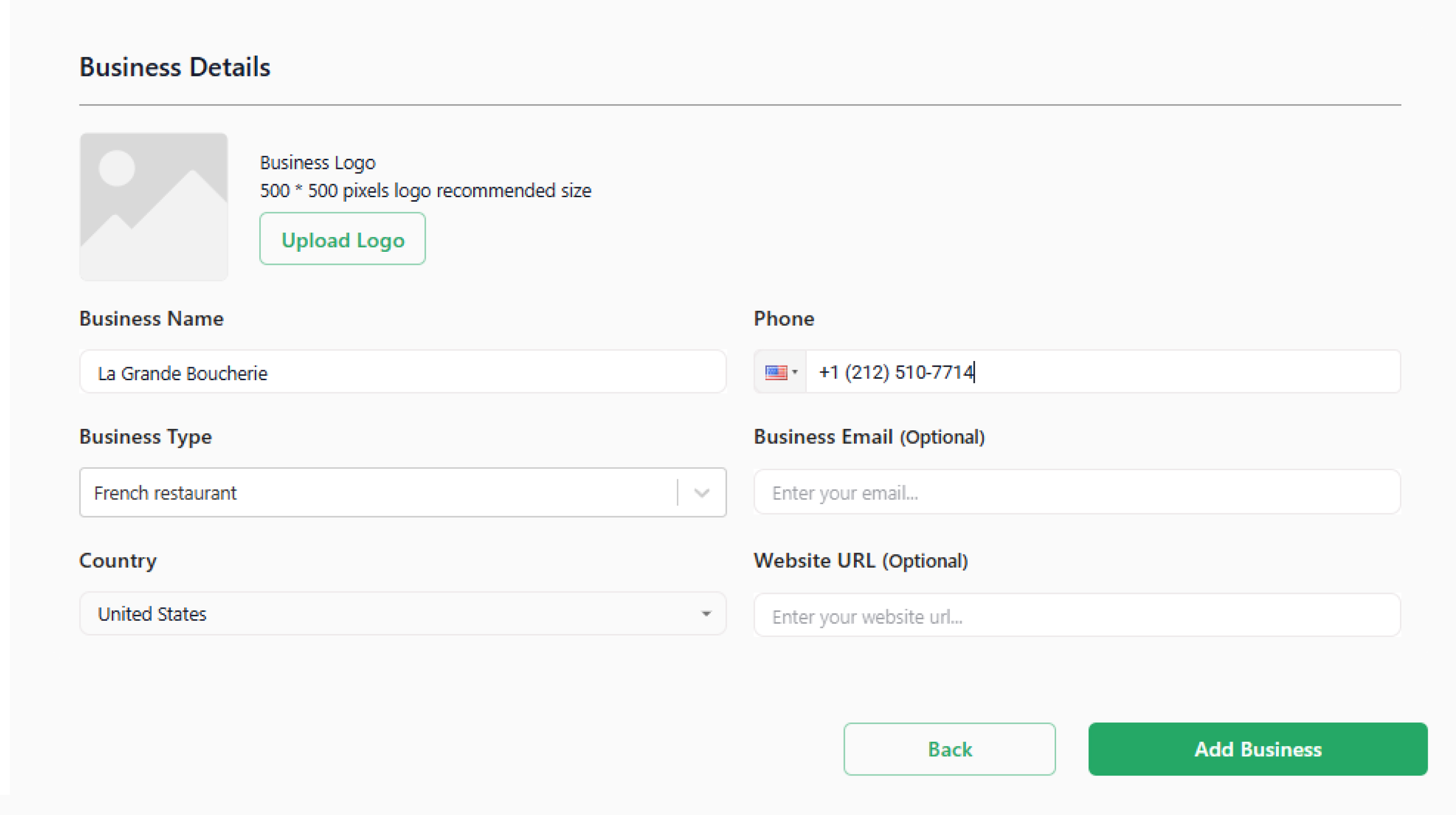
- Add Business Details. (Business name, type, country, phone number, email)
- Click on Add Location.
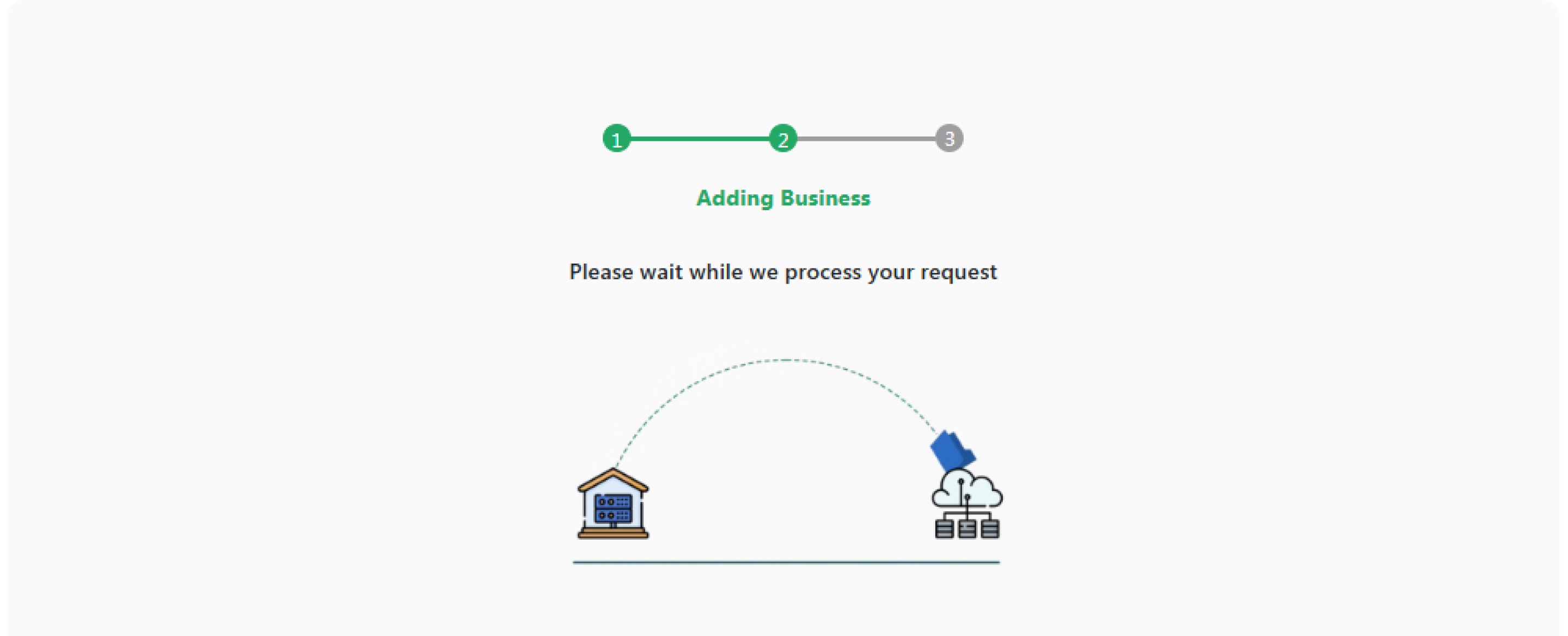
- Your business has been added successfully.