How to Add Google My Business to Your Quick Hub
With Quick Hub, you can centralize and manage all your Google My Business profiles in one place. Easily update posts, showcase services, and respond to reviews—all from a single platform. To do so, follow the steps below:
-
Go to Quick Hub.
-
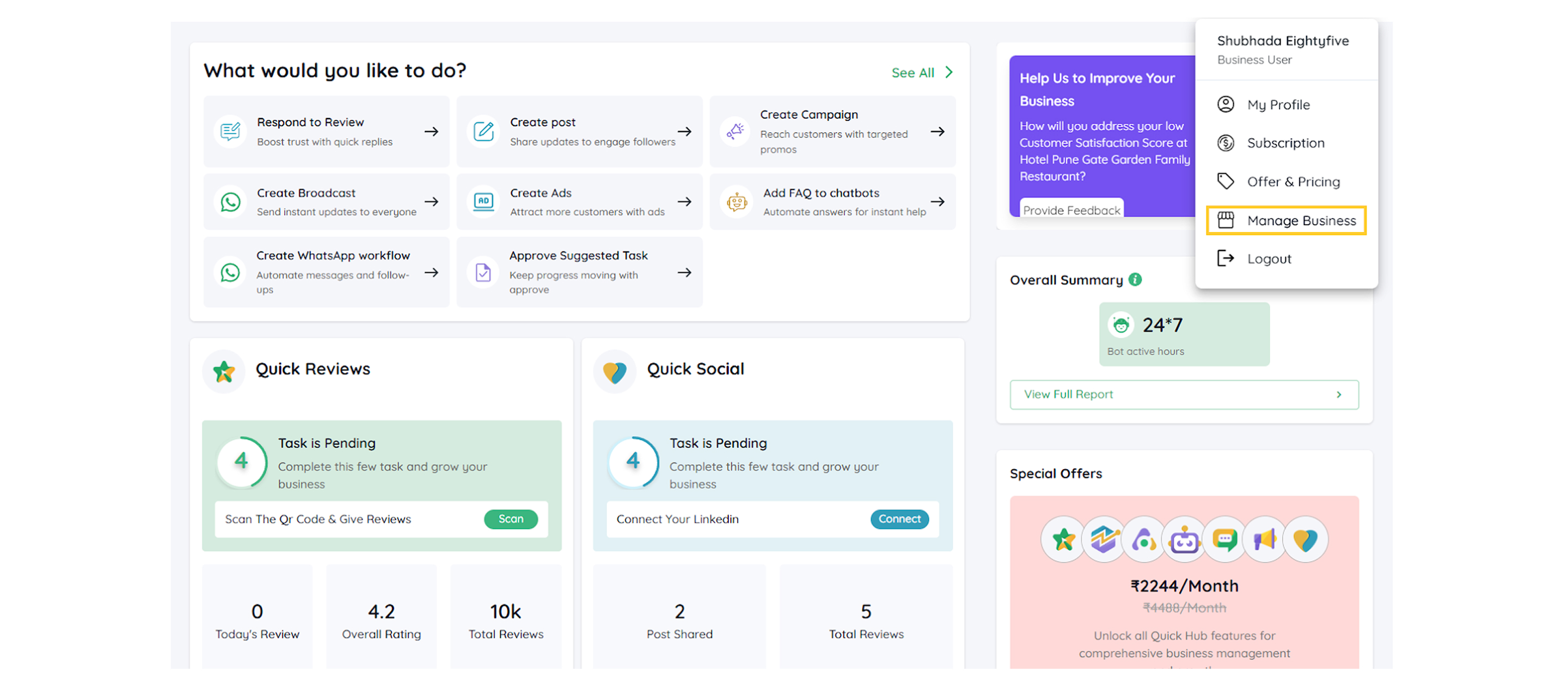
Click the profile icon in the top right corner, then click Manage Business.
-
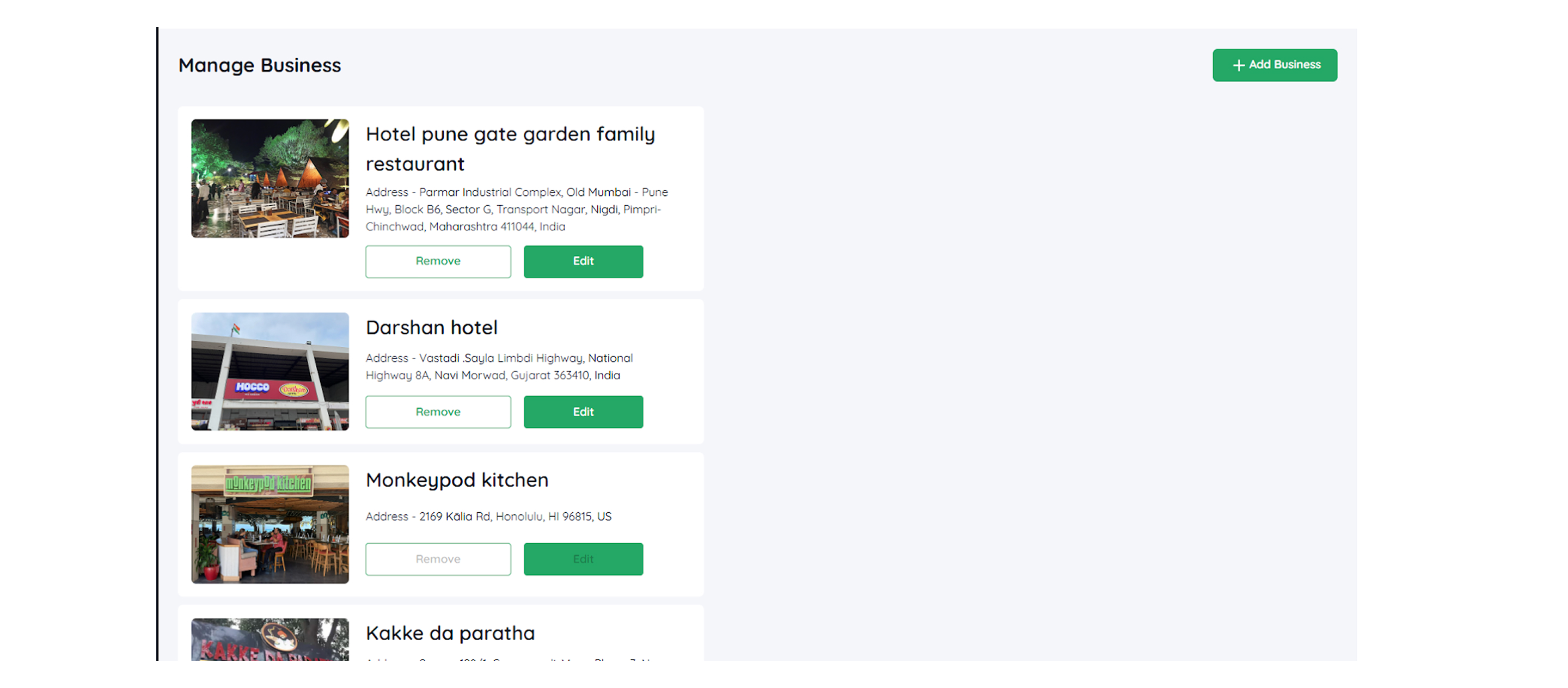
Click Add Business in the top right corner.
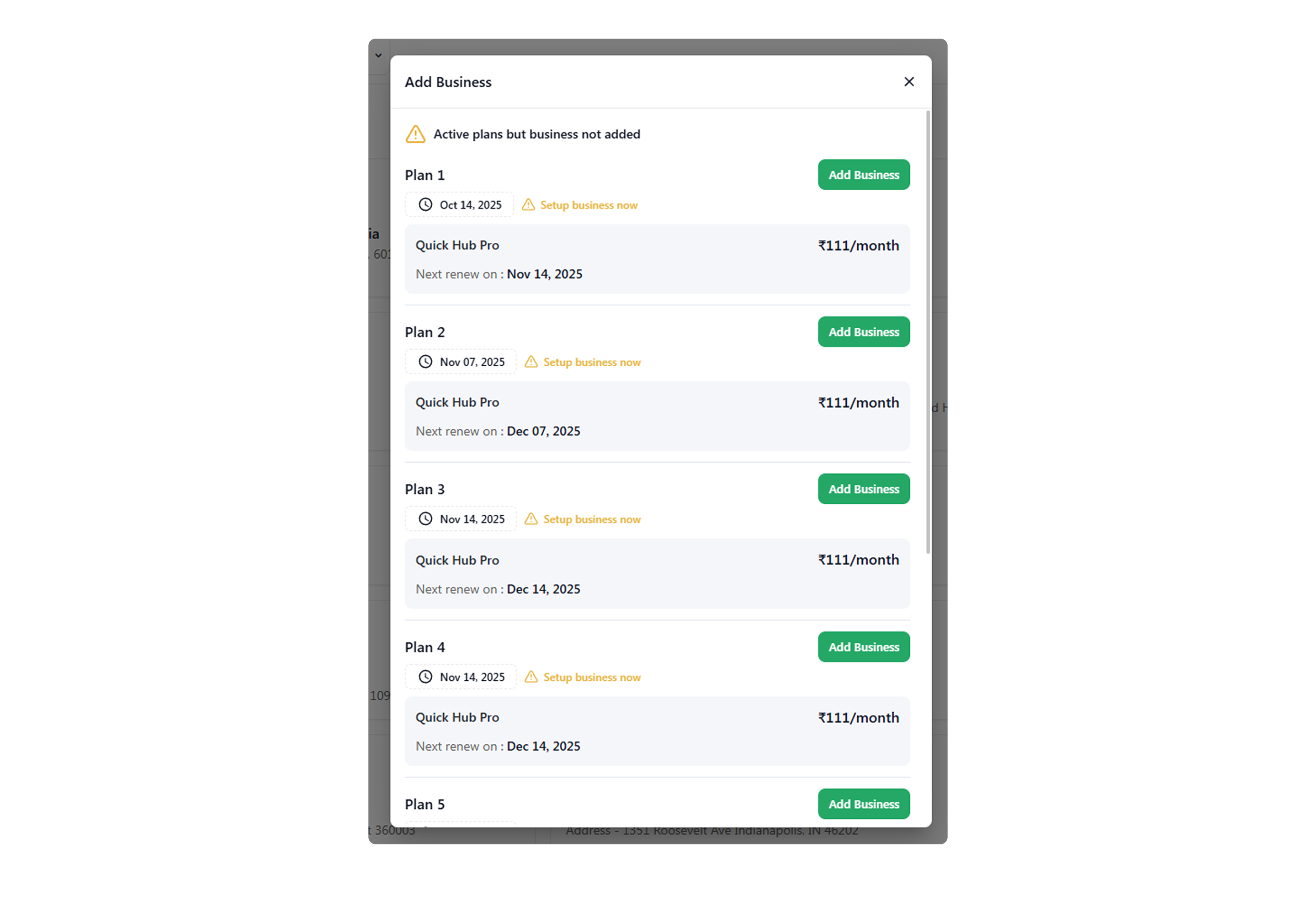
- Select Add Business again.
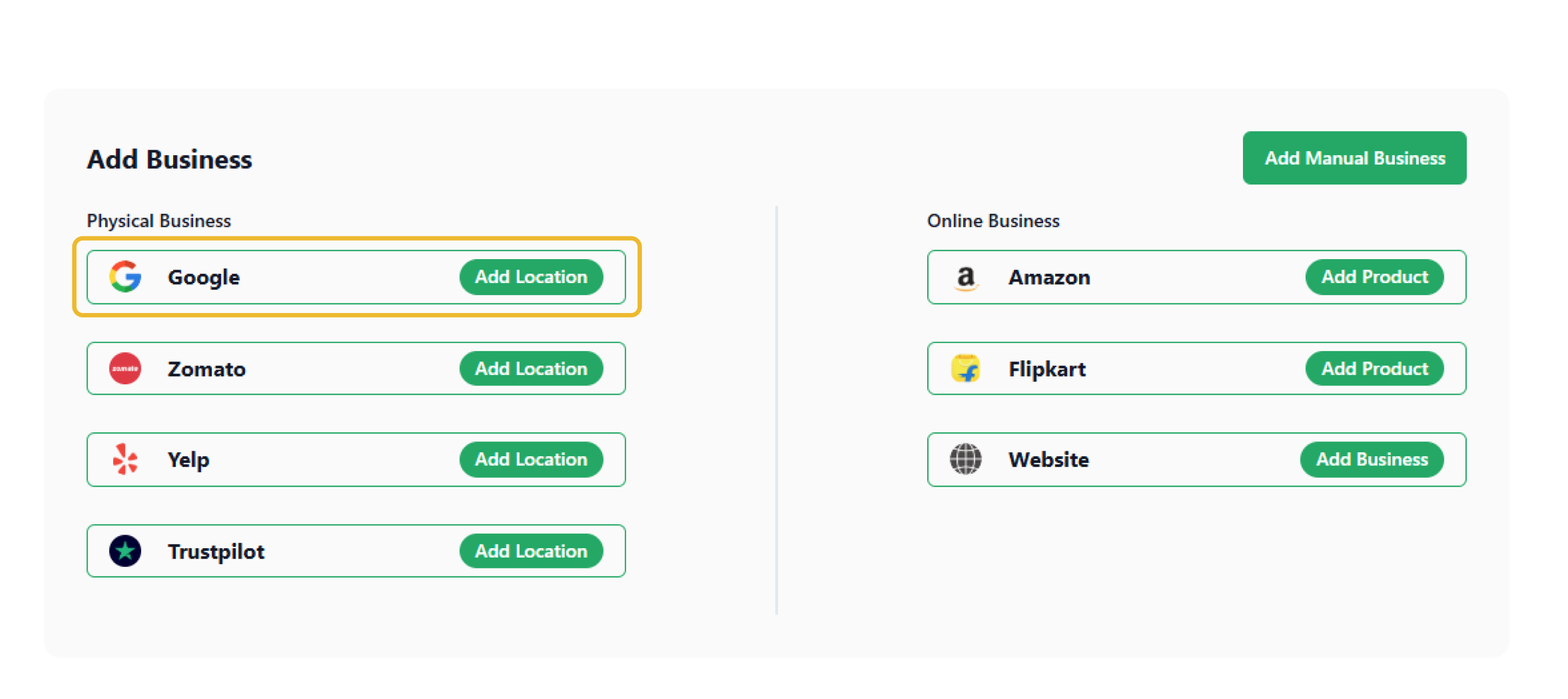
- Select Add Location next to the Google option to connect your profiles.
- Click Connect with Google Business.
- Sign in with your Google account.
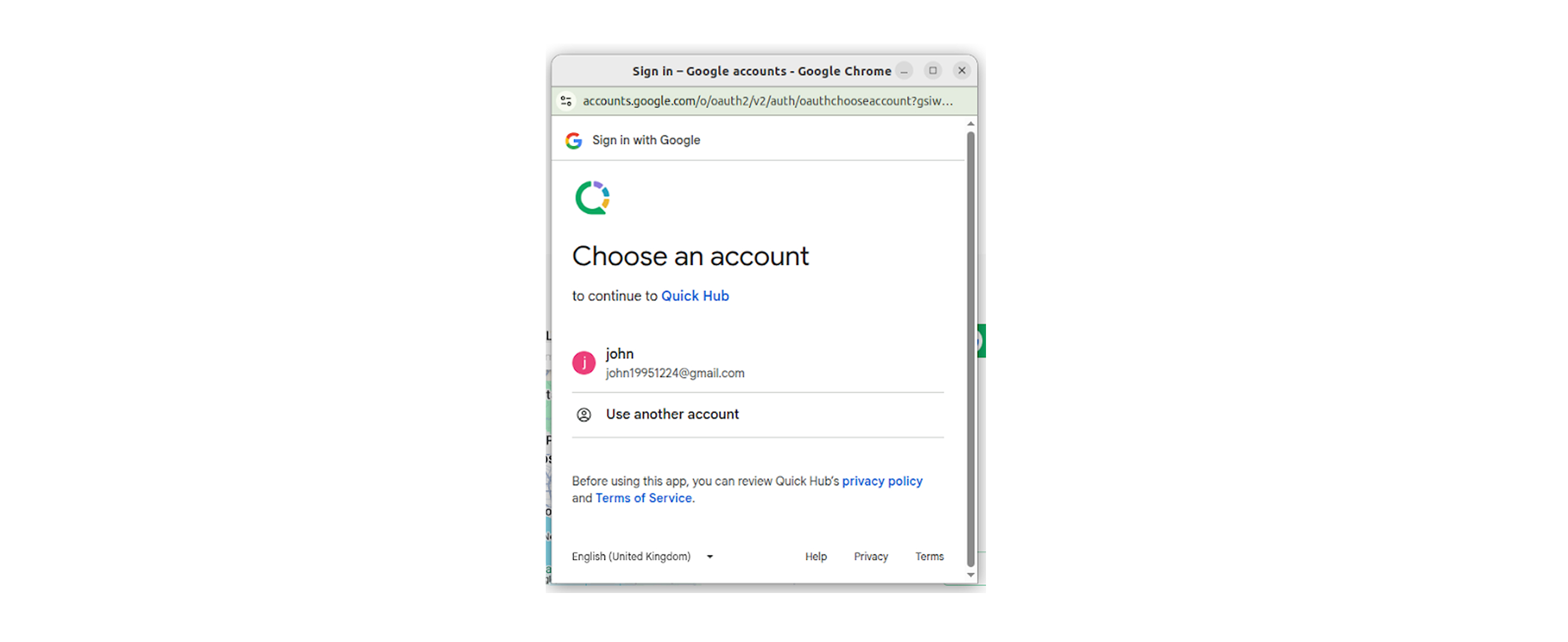
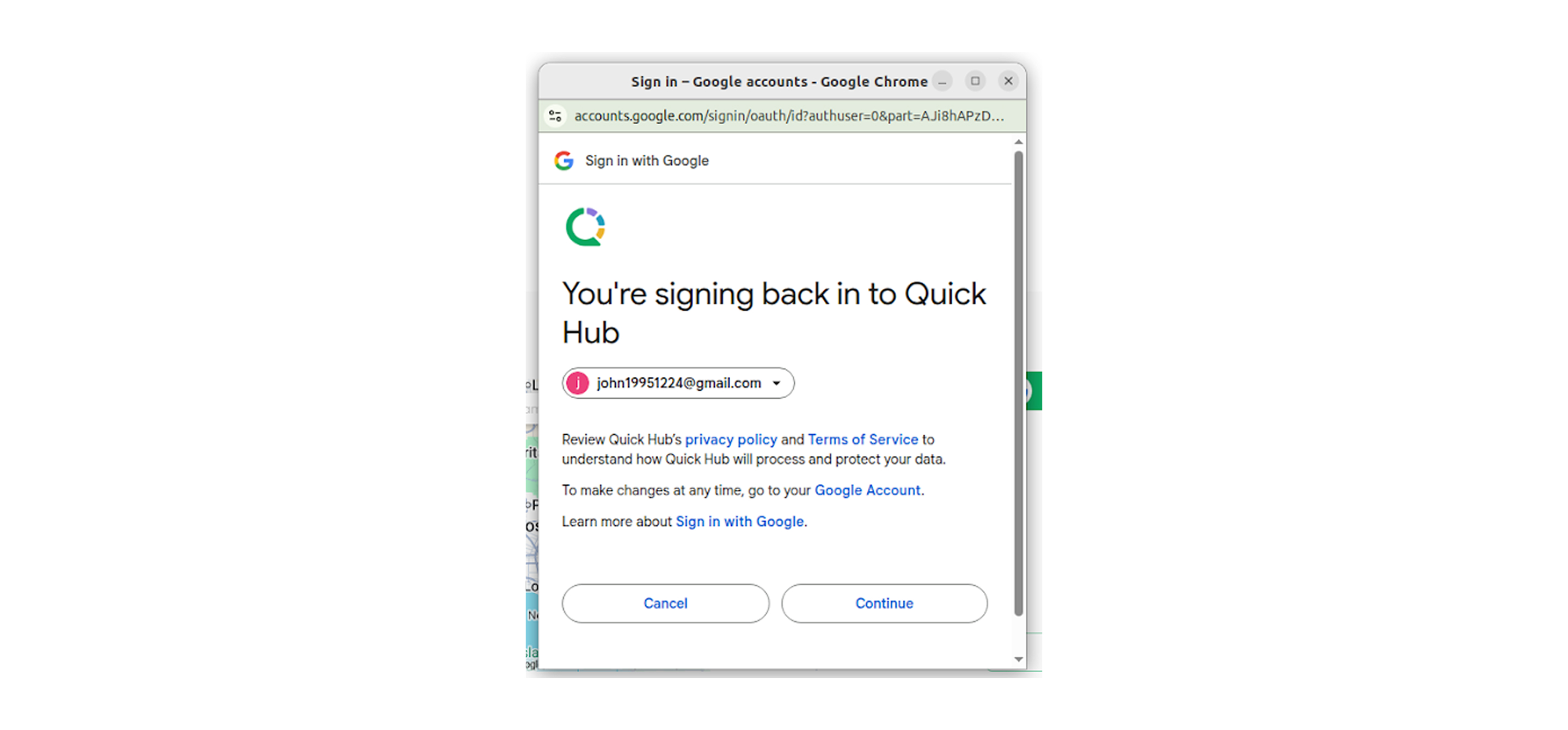
- Click Continue.
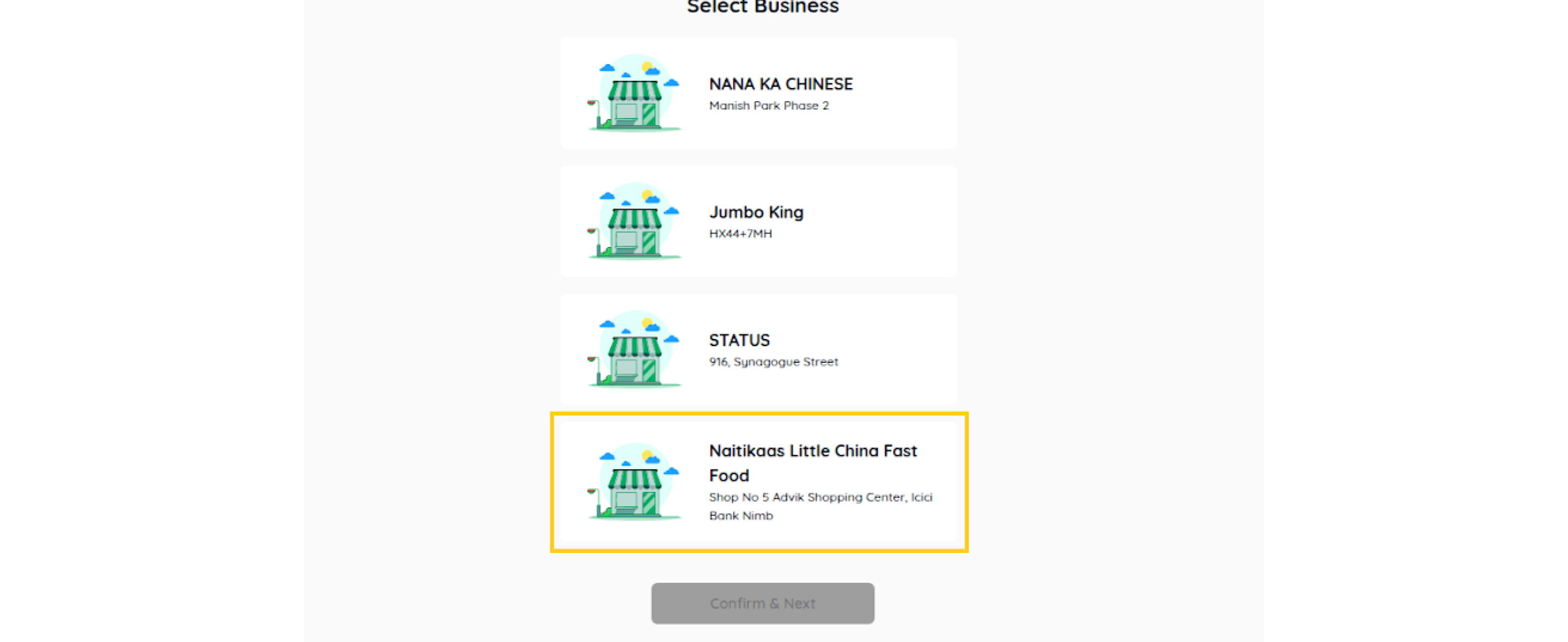
- Select the business you want to link with Quick Hub, then click Confirm & Next.
- You’ll be directed to the business details page, where you can fill in essential information such as your business logo, name, type, phone number, country, business email, and website URL.
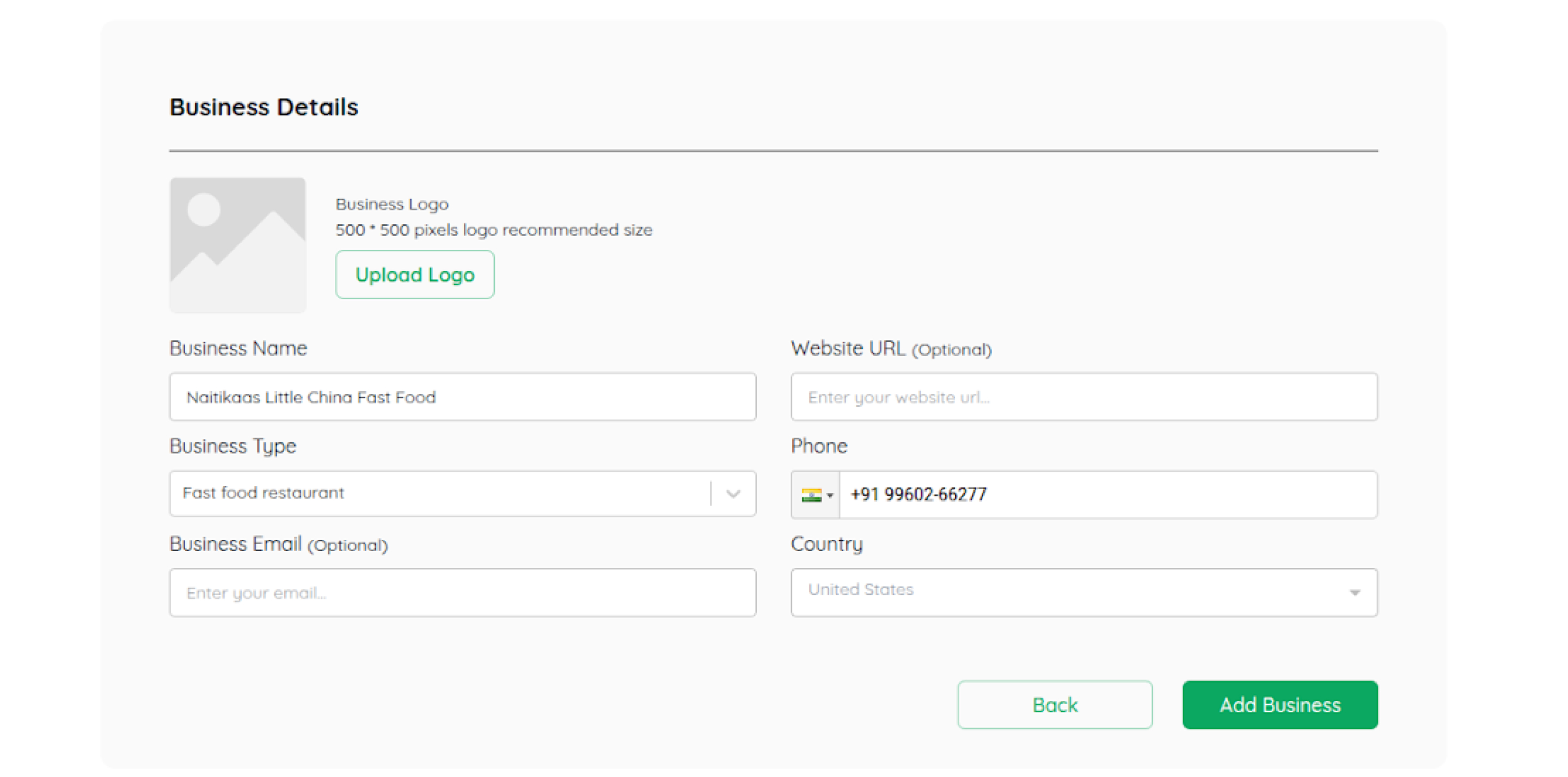
- Finally, click Add Business.
Congratulations! You have successfully linked your Google My Business account to your Quick Hub.