How to Chat with Chatbot, Chat on WhatsApp, Raise a Ticket, Schedule a Meeting, and Check Notifications in Quick Hub
If you encounter an issue or need clarification while using Quick Hub, you can contact us in multiple ways. You can chat with our chatbot, connect via WhatsApp, raise a support ticket, or schedule a meeting. Here’s how:
-
Go to Quick Hub.
-
In the top right corner, click the Need Assistance icon.
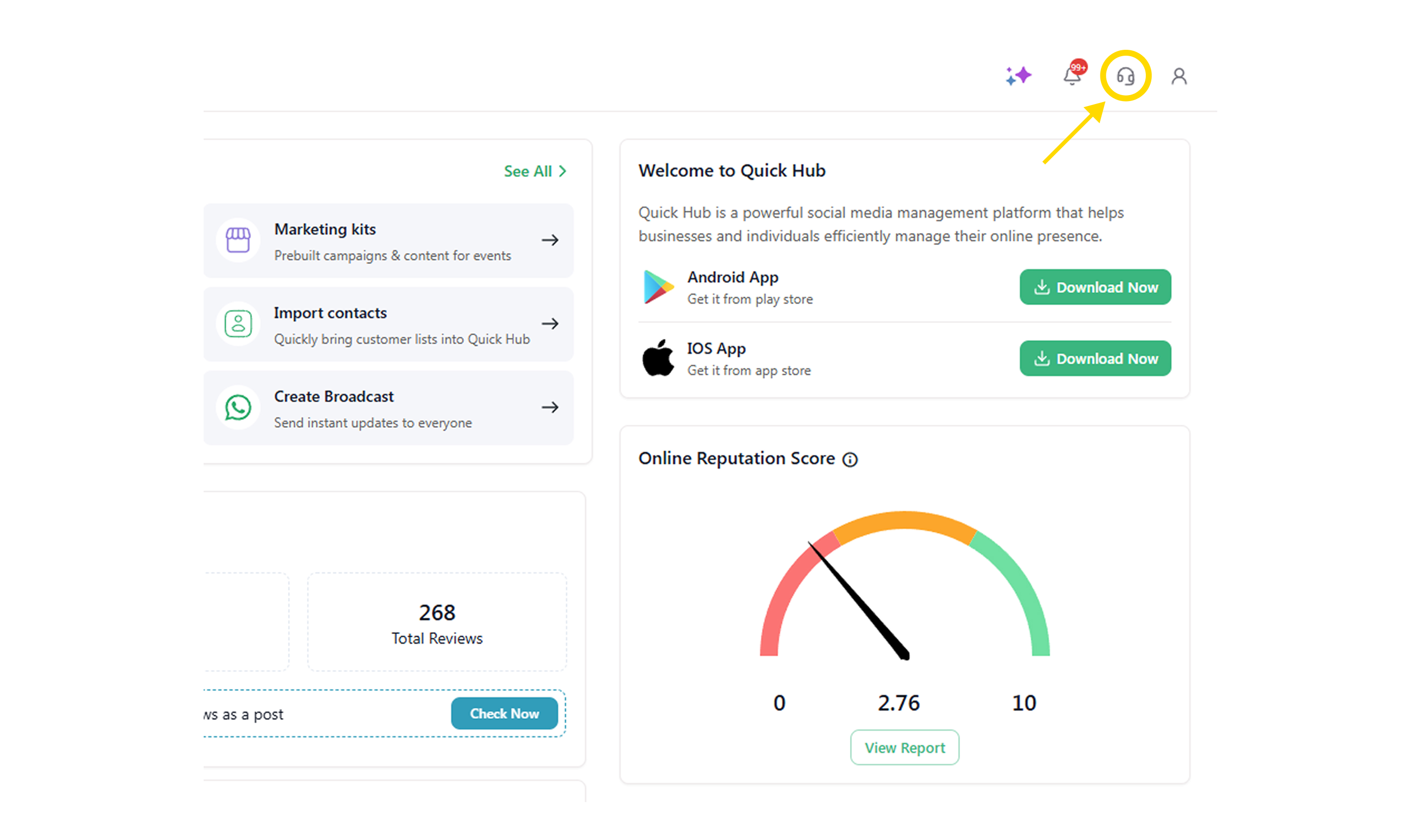
- Here are all the ways you can get in touch with us. Let’s discuss them one by one.
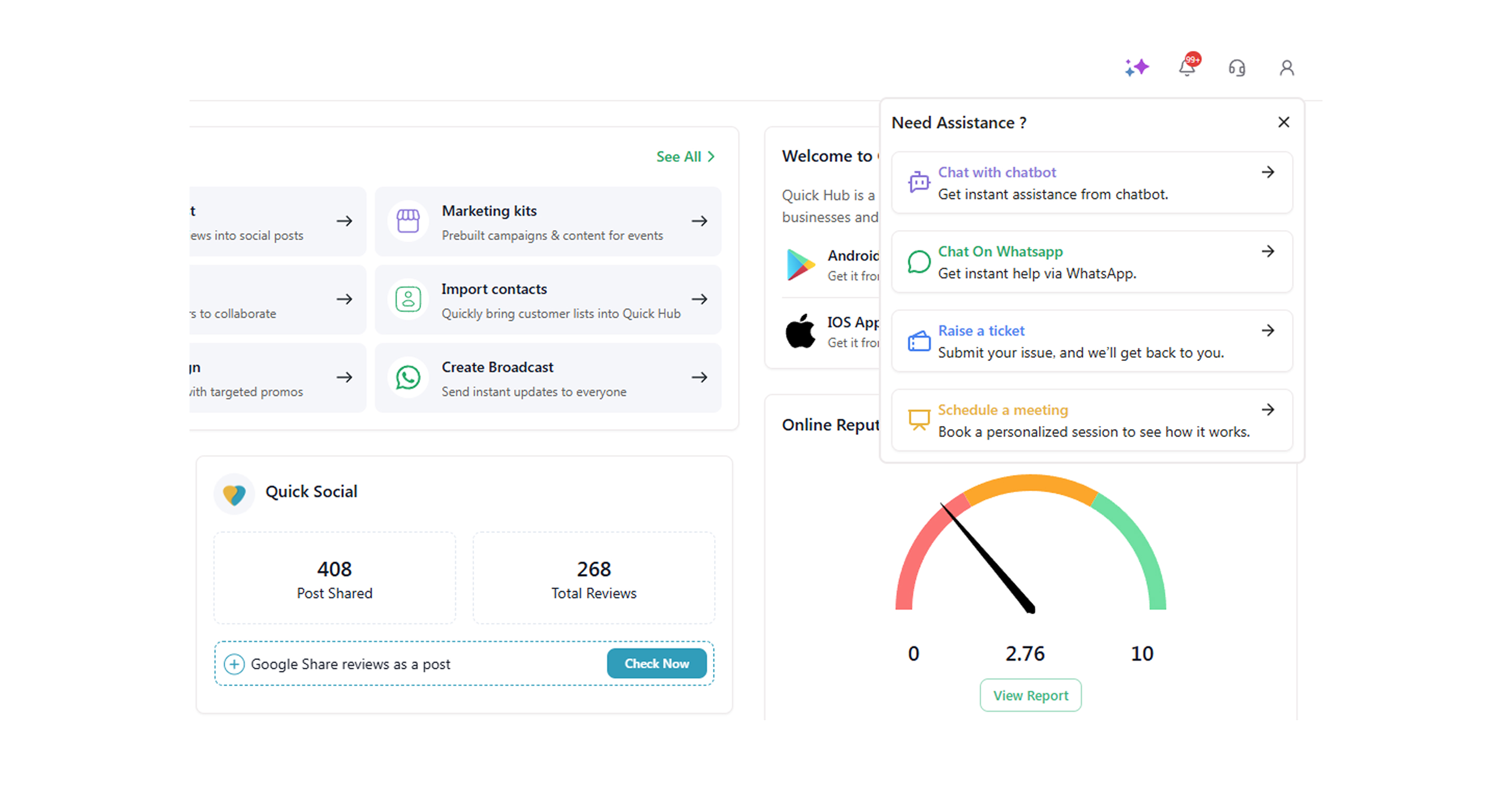
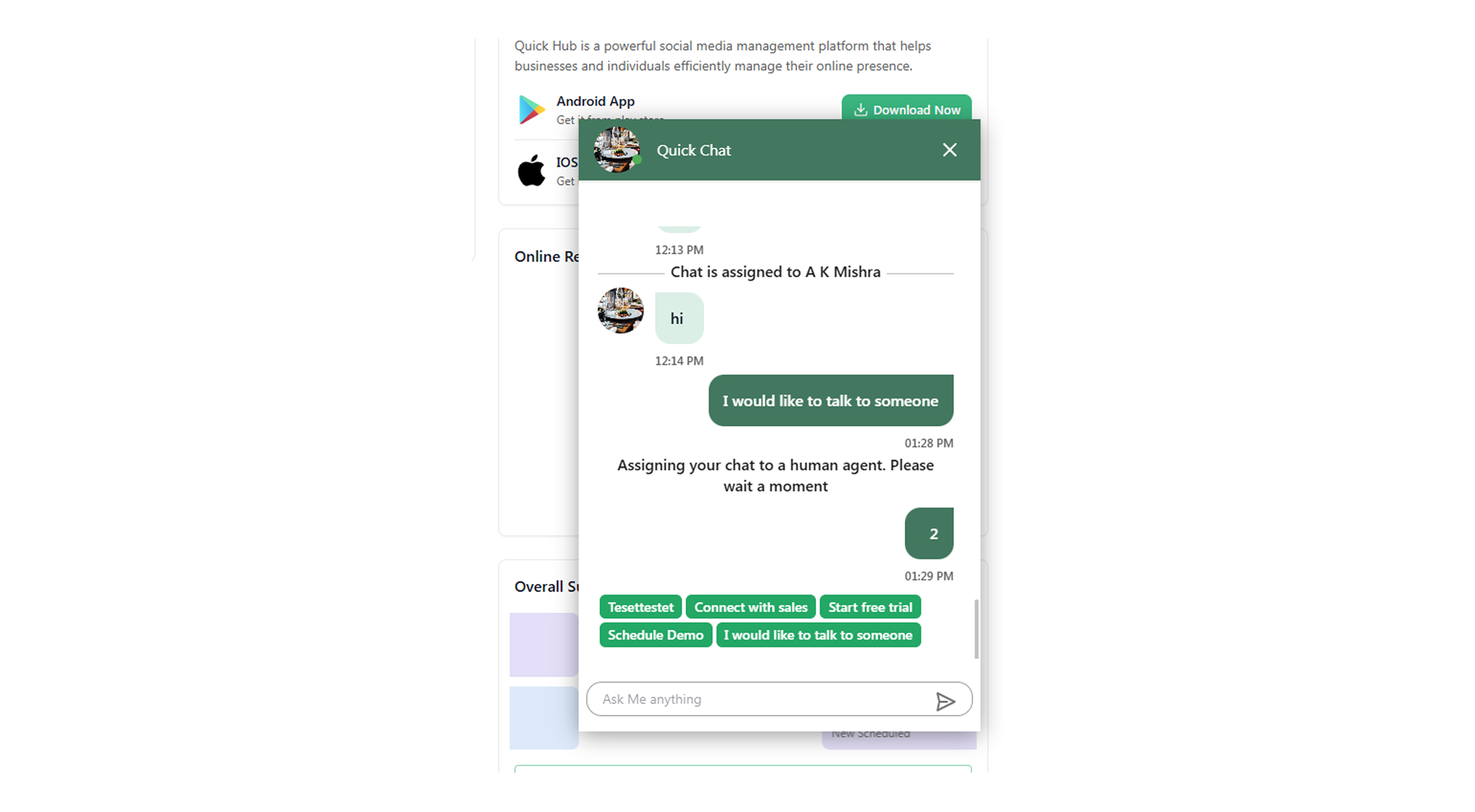
- Click the Chat with Chatbot option to share your queries with the chatbot. The chatbot is equipped to answer all questions about Quick Hub’s products and services.
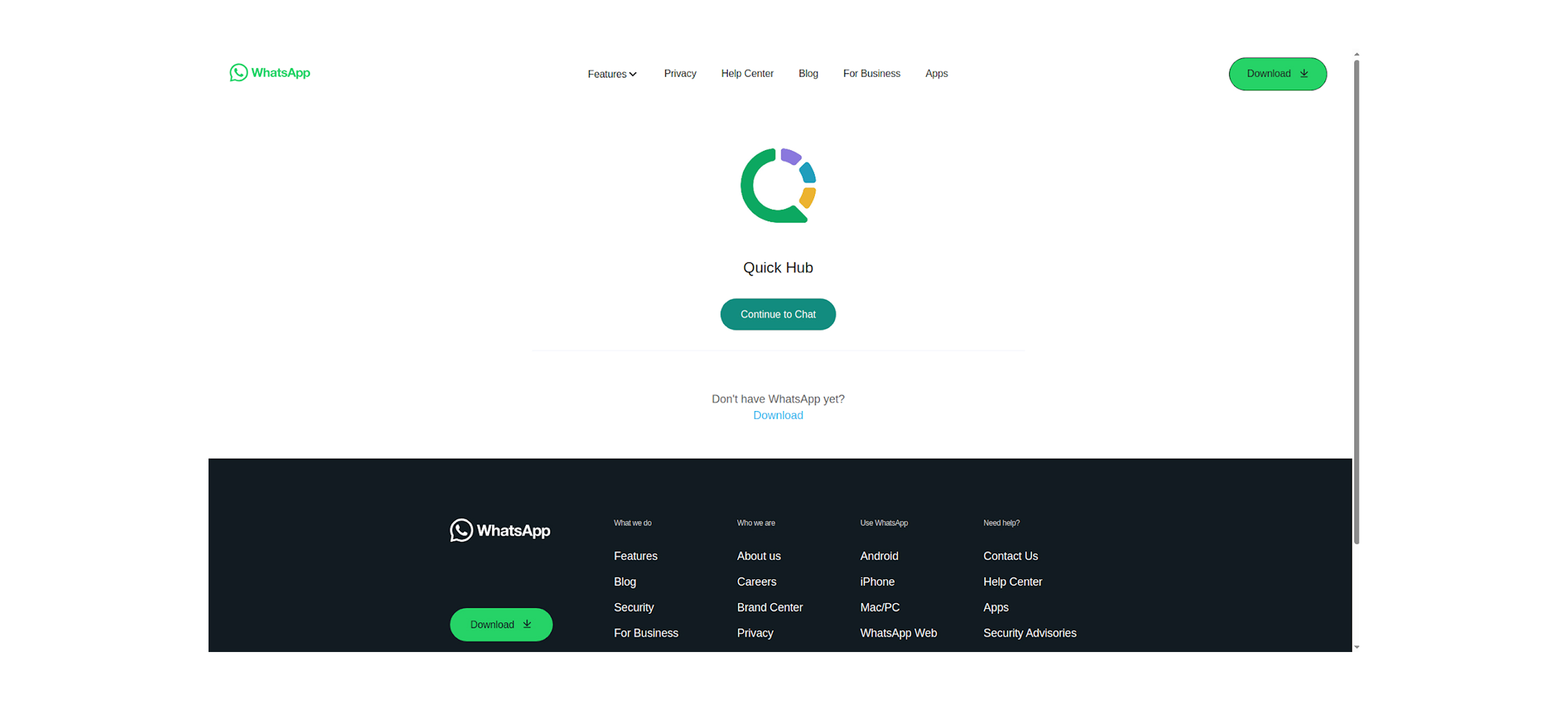
- Click Chat on WhatsApp for instant support. You’ll be directed to WhatsApp, where you can continue the conversation through your browser or the app.
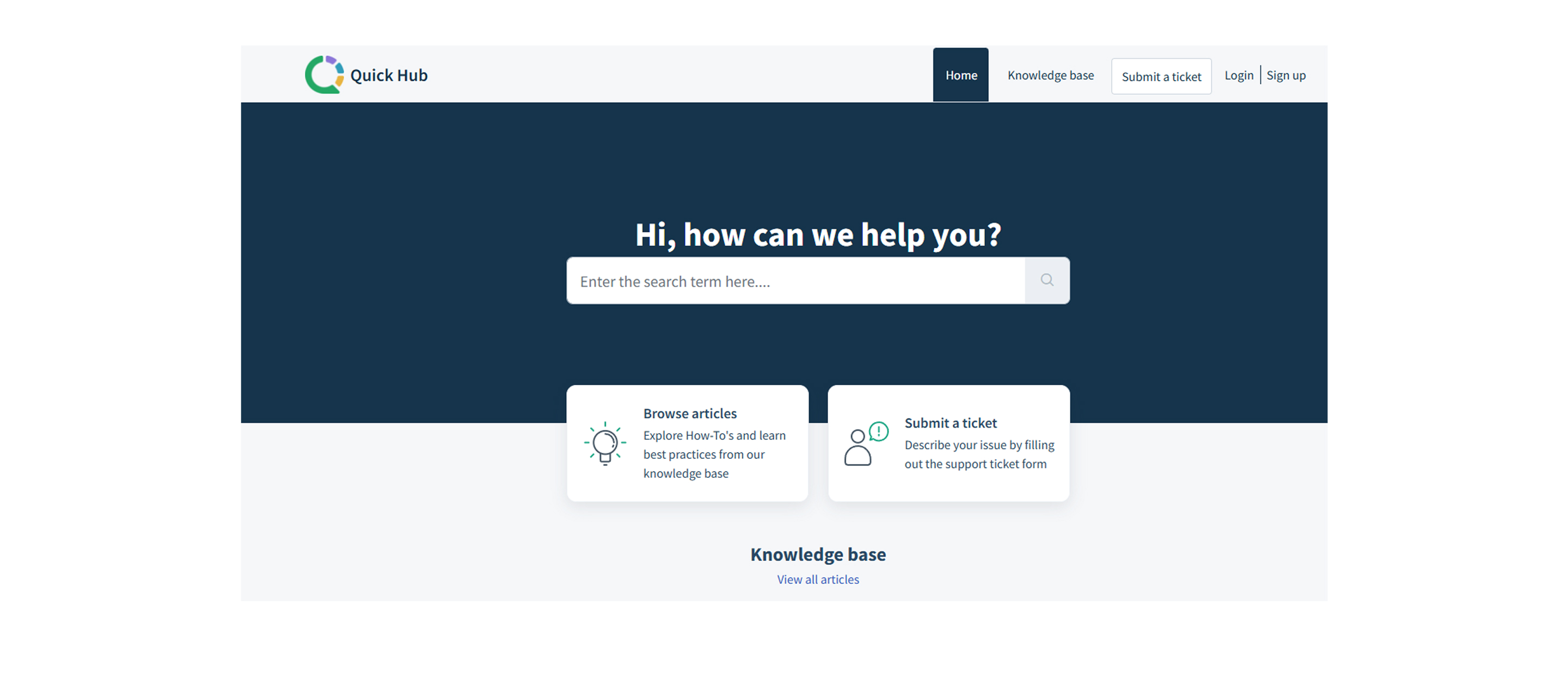
- You can also raise a ticket by clicking the Raise a Ticket option. Then, click Submit a Ticket.
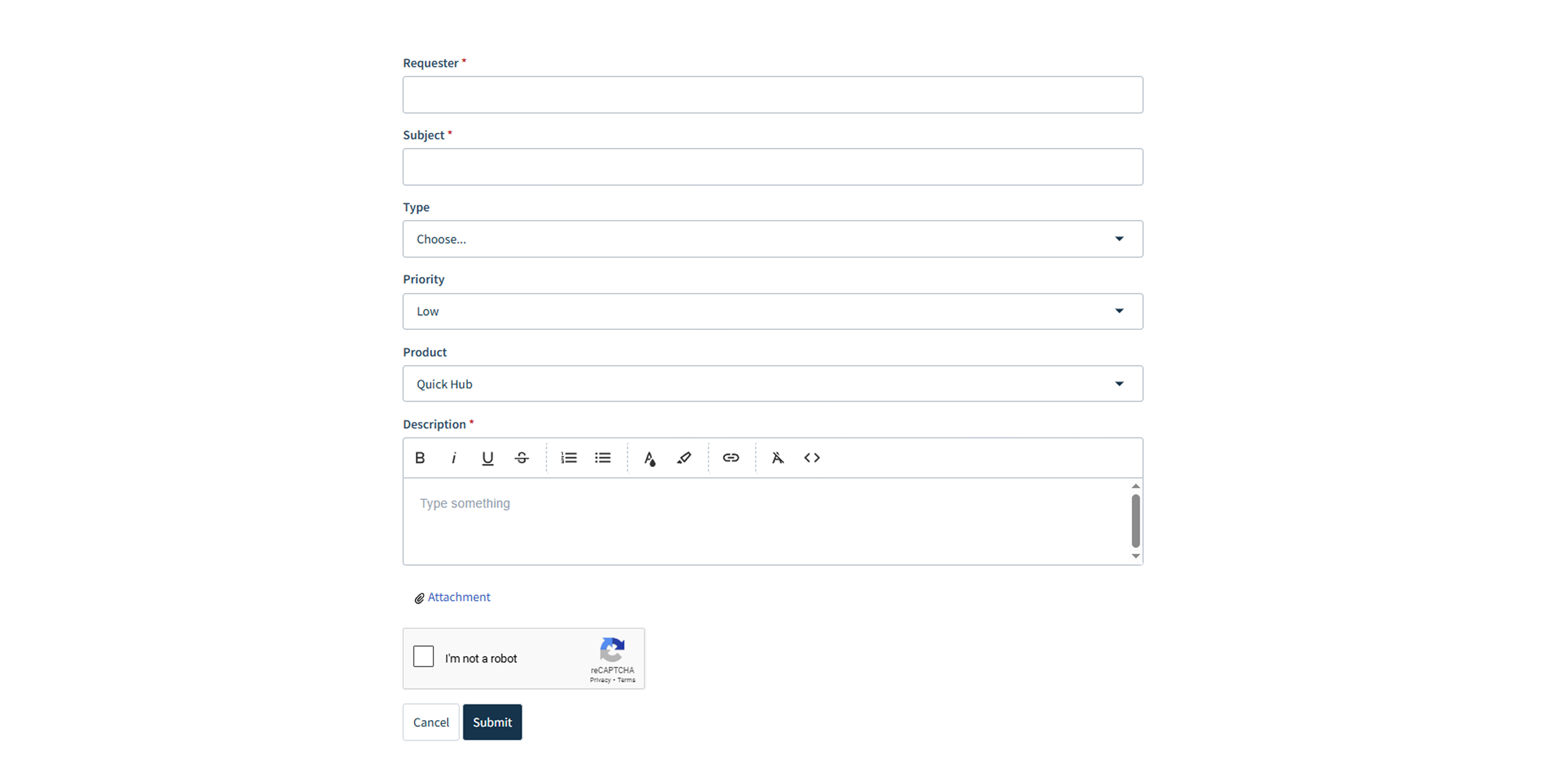
- On the next screen, fill in the requester, subject, type (question, incident, problem), priority (low, medium, high, urgent), product name, description of the issue, and add any attachments. Tick the captcha box, then click Submit.
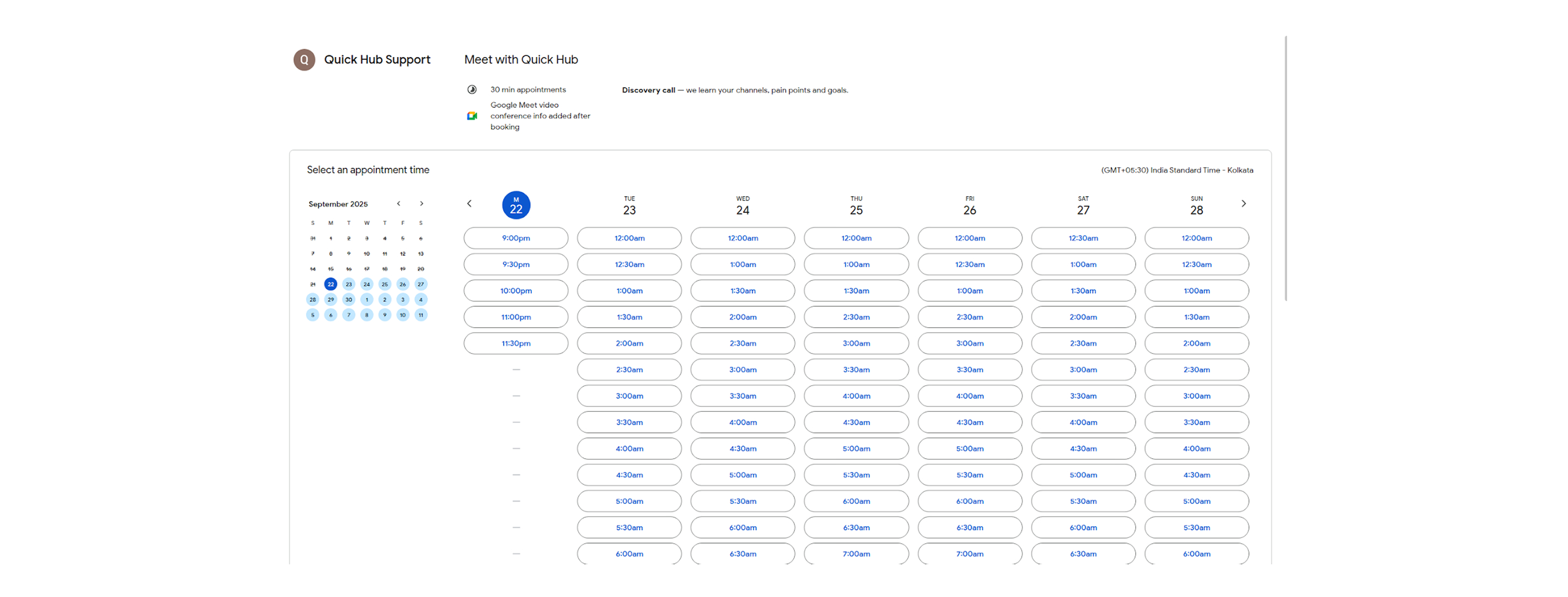
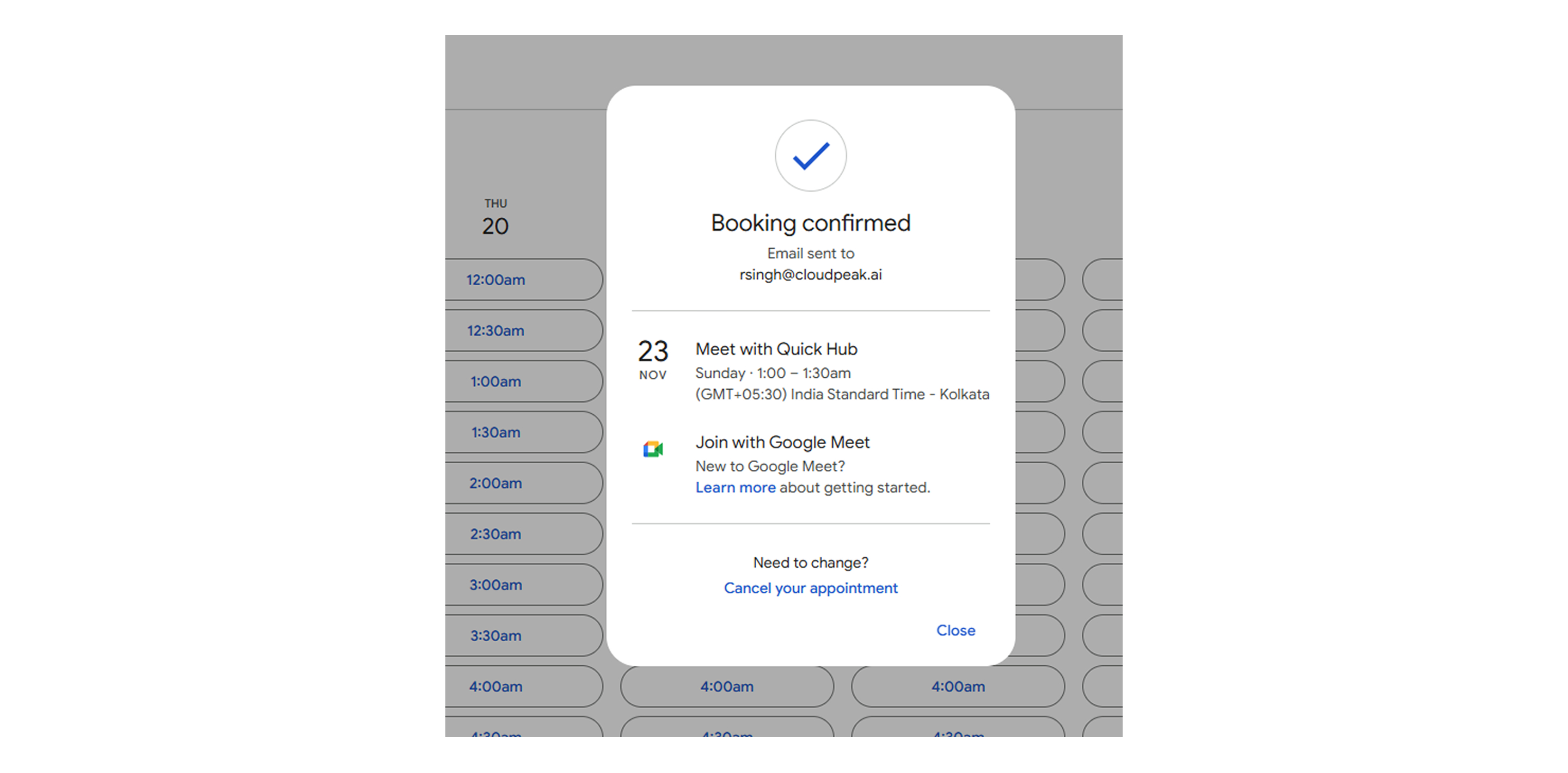
- To schedule a meeting with our team, click Schedule a Meeting. You will be directed to a calendar page, where you can choose the date, time, and a slot for the meeting.
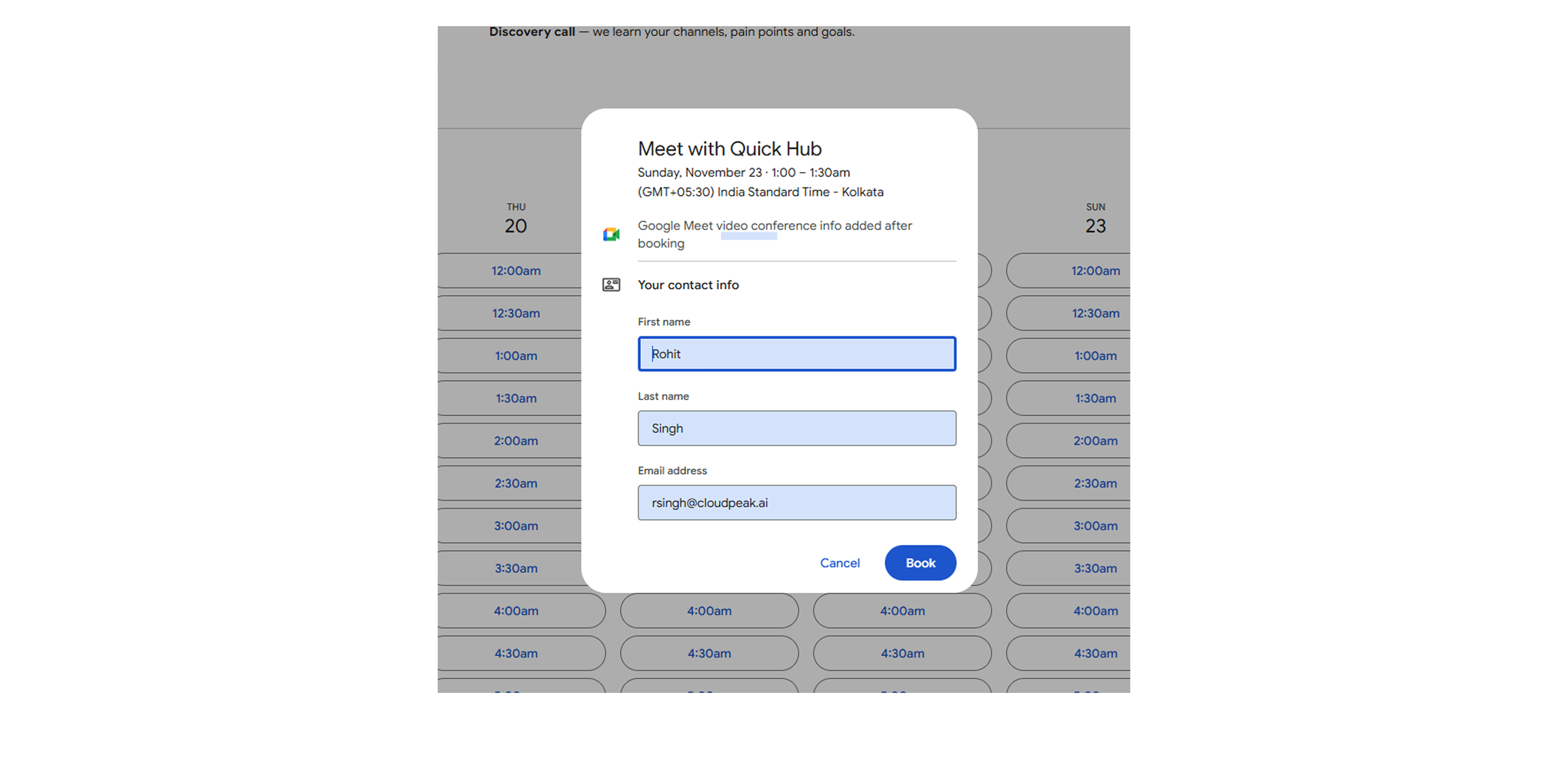
- Enter your first and last name and your email address, then click Book.
You now get all notifications and updates in one place in Quick Hub. To check them, follow the steps below:
-
Go to Quick Hub.
-
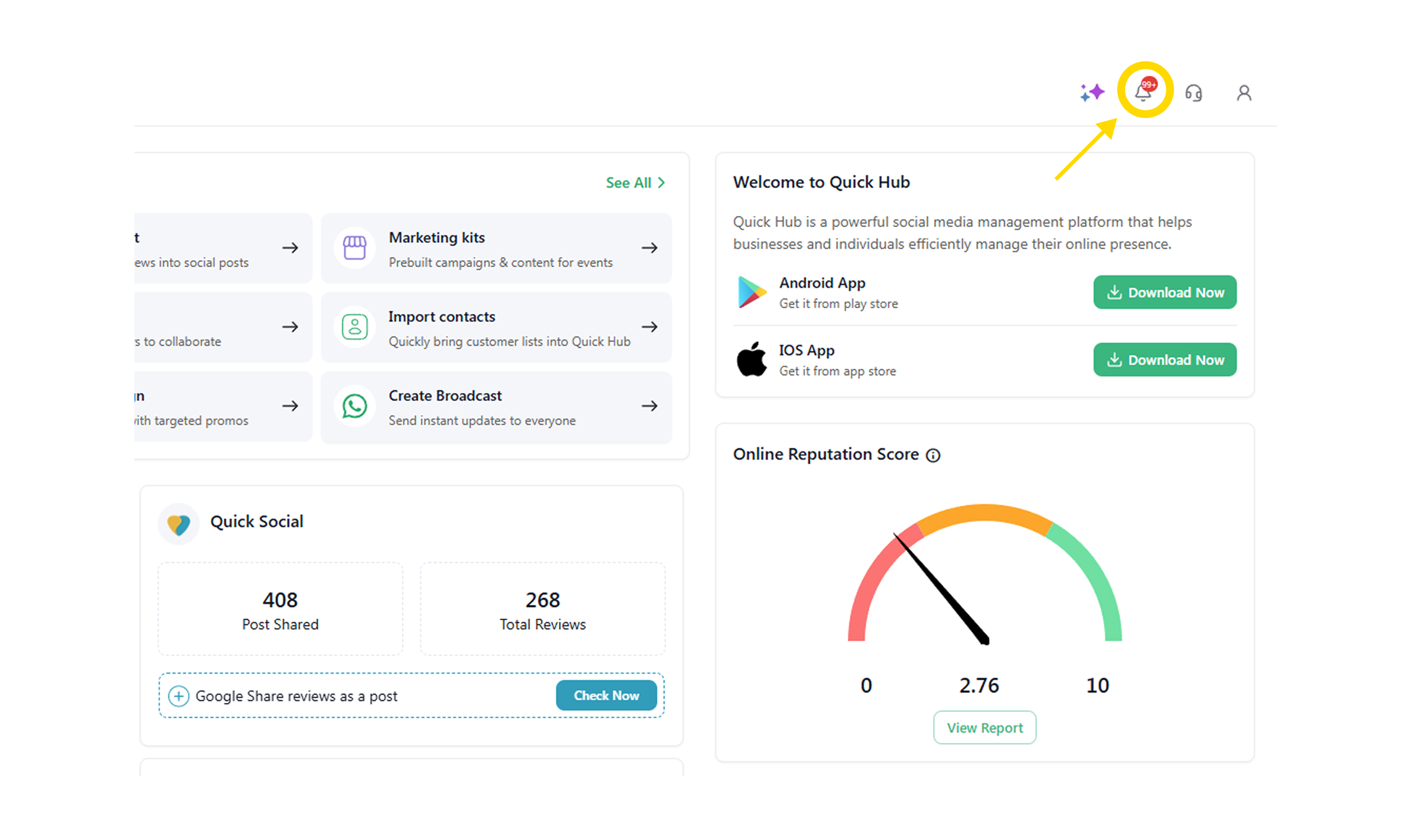
In the top right corner, click the bell icon.
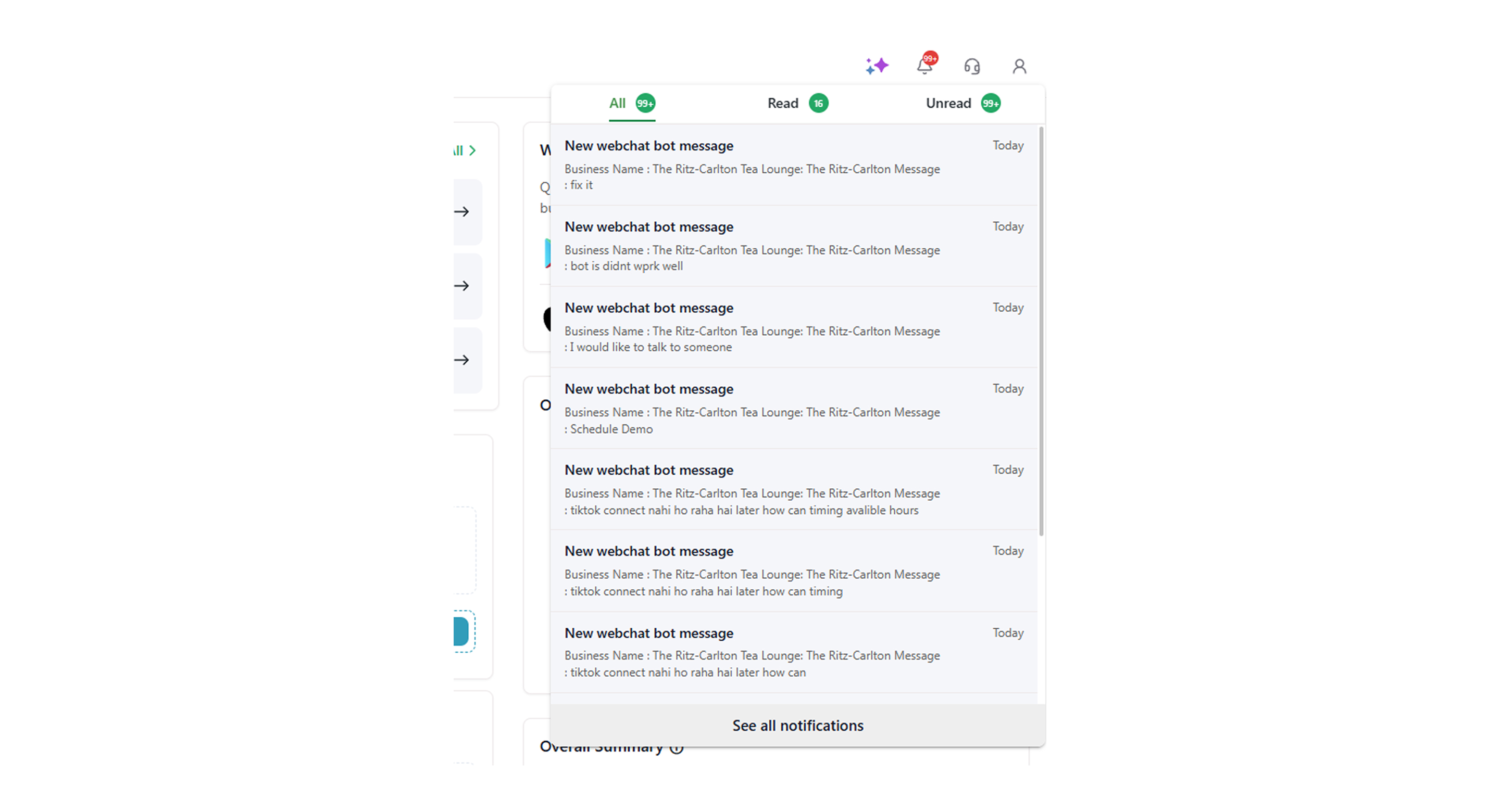
- Here, you can view all, read, and pending notifications.
-
To view a particular notification, click the arrow icon next to the notification.
-
Click See all notifications to view all notifications in one place.