How to Add/Edit Primary Details for Google My Business in Quick Hub
Follow the steps below to add or edit primary details for your Google My Business in Quick Hub.
-
Go to Quick Hub.
-
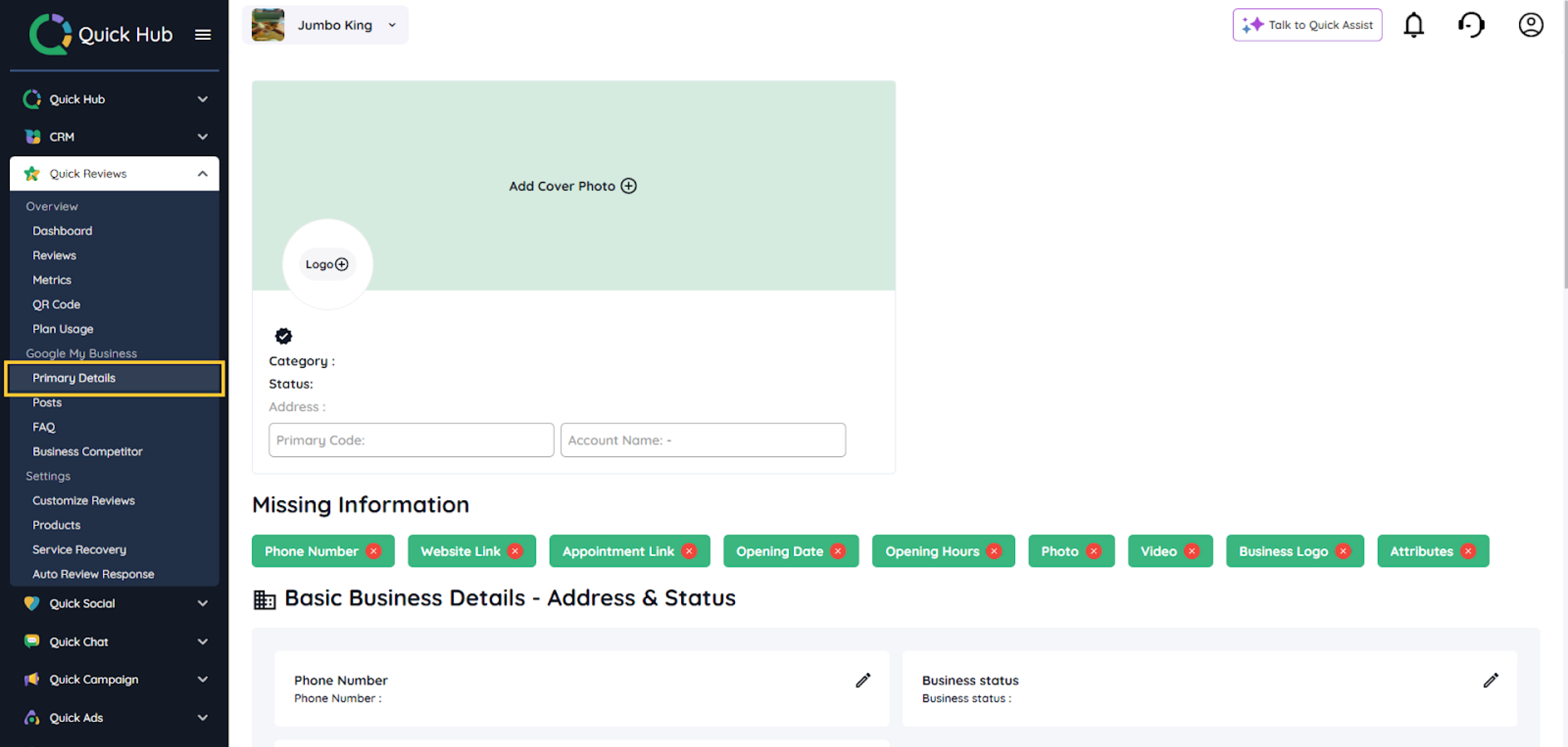
From the left menu bar, navigate to Quick Review and select the Primary Details option under Google My Business.
-
Here, you will see any missing information that needs to be filled out. Let’s fill in the details.
-
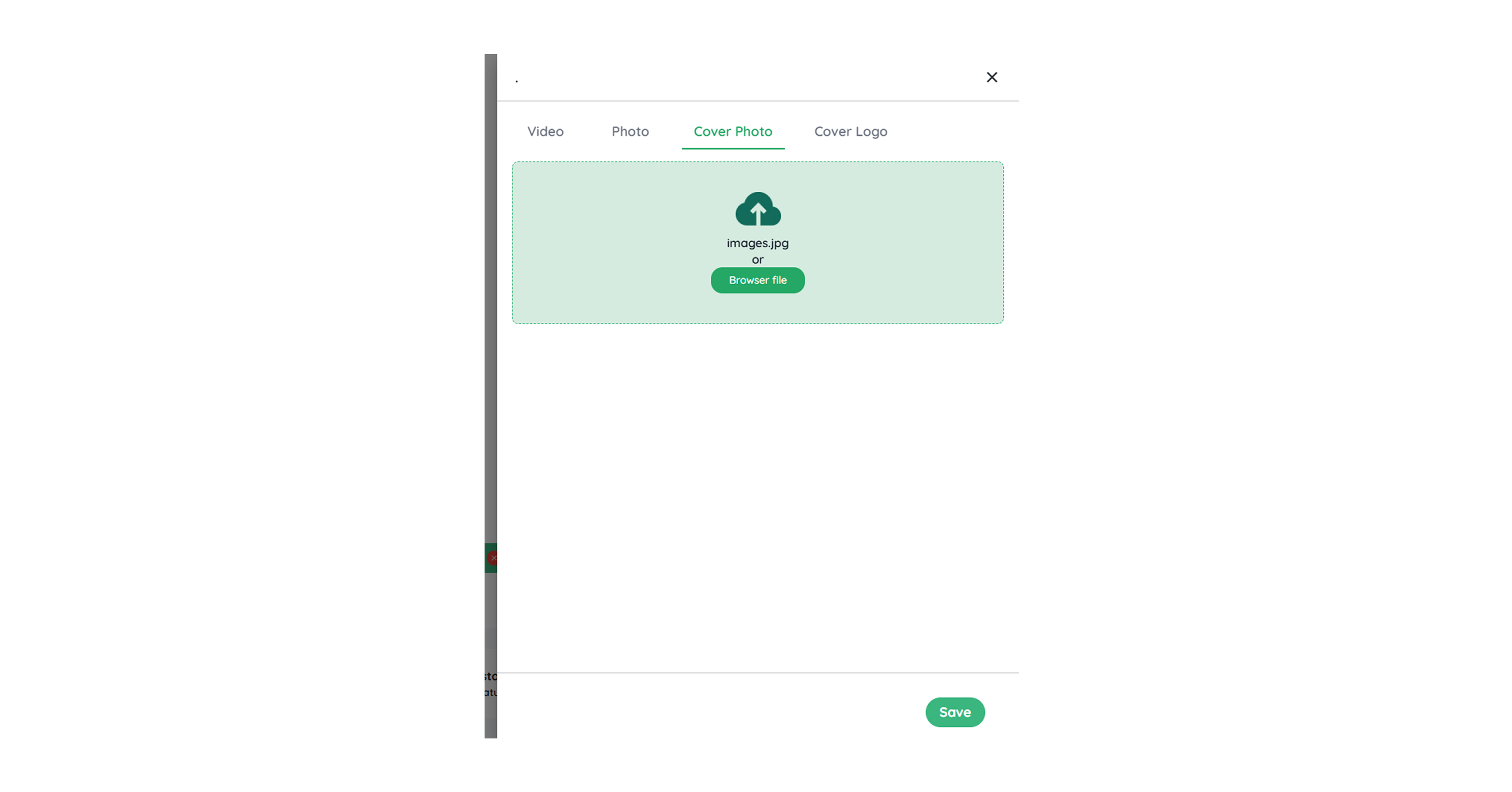
Click Add Cover Photo to add your business cover image. Select a cover image and click Save.
-
Click the logo icon to upload your logo.
-
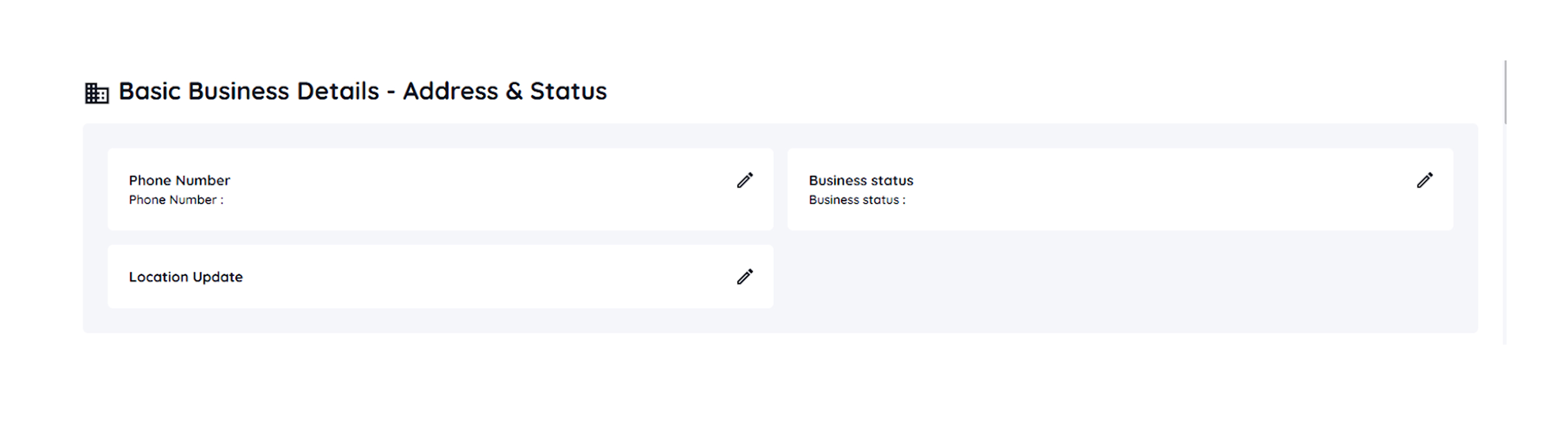
Under the Basic Business Details—Address & Status section, you can add the primary & additional phone numbers, business status, and business address.
-
Then, click Save.
-
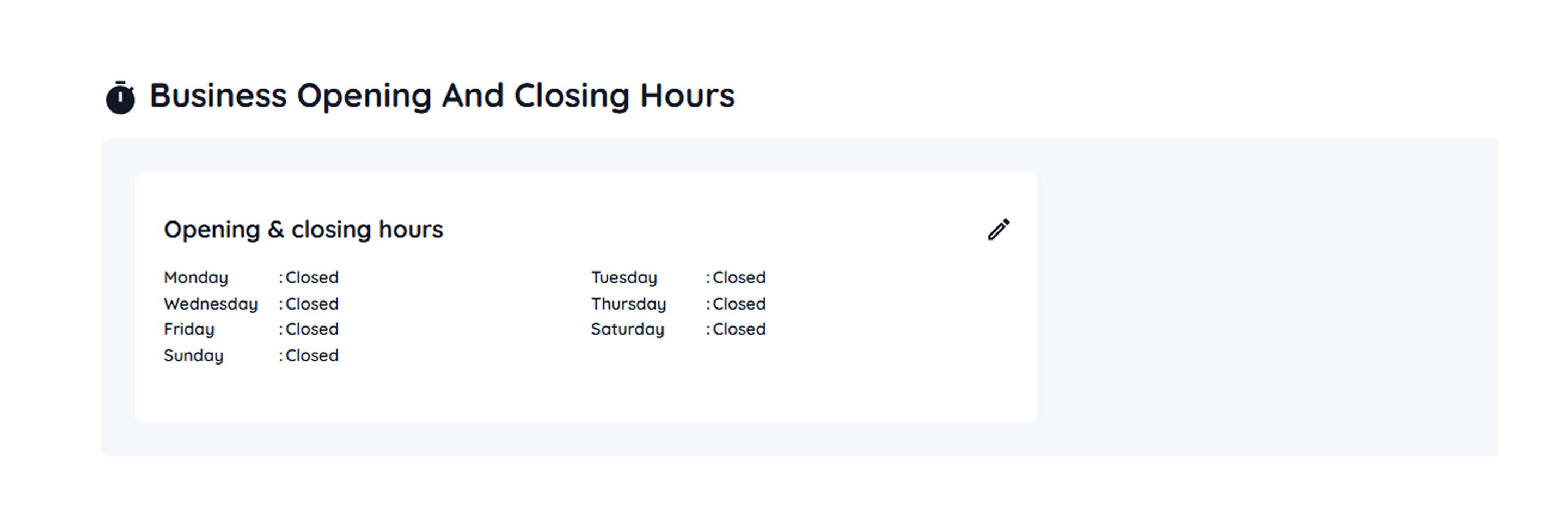
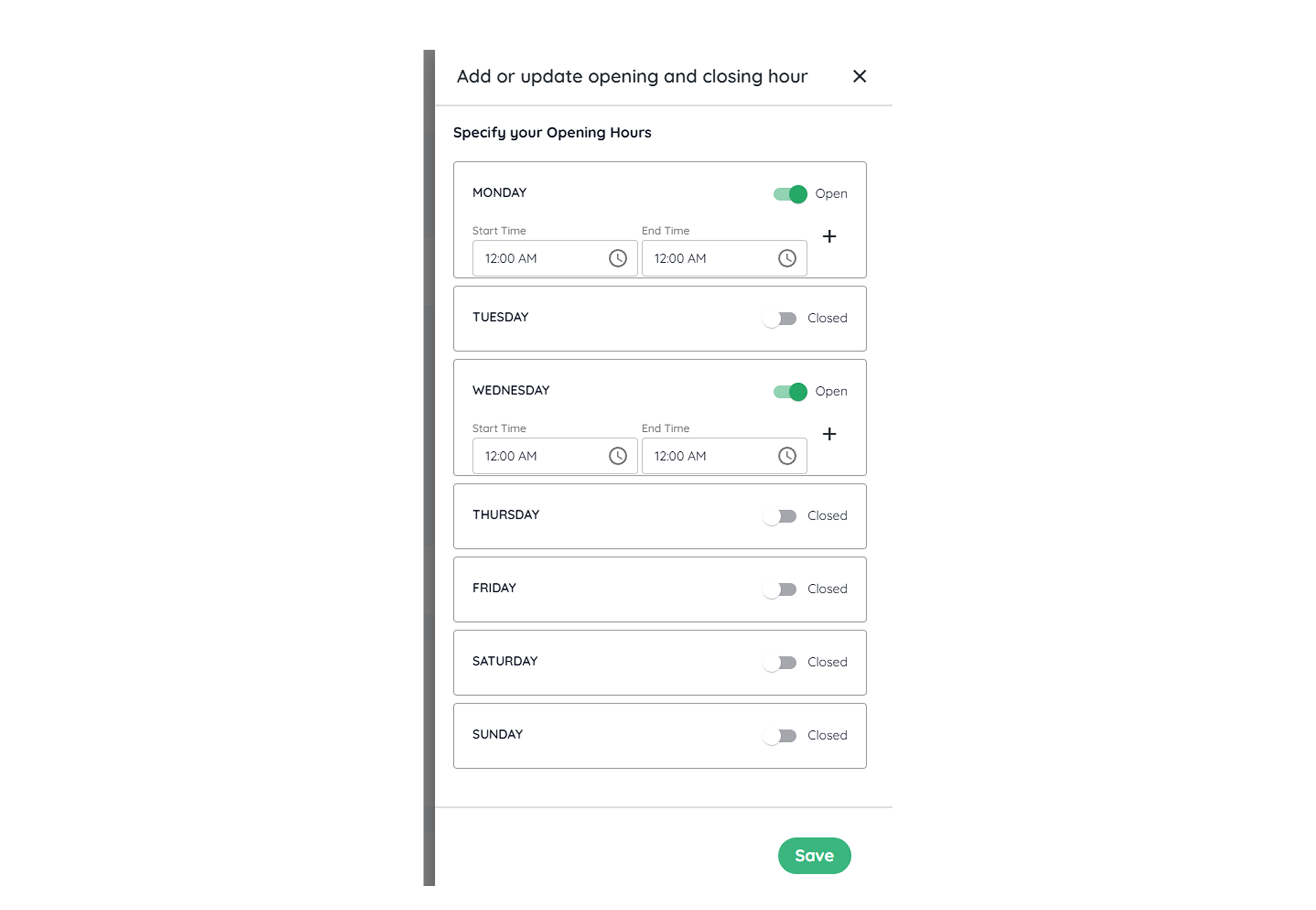
Under the Business opening and closing hours section, specify your opening hours and days. Click the ‘Edit’ option to choose.
-
Click Save.
-
In the Logo, Photo & Video section, upload your storefront photos and videos.

- Add the website & appointment link in the next section.

- In the Add Business Service section, add the services you offer with a detailed description. Click Add Services to do so.

- The Attributes section allows you to add the attributes that best describe your business. Click Add Attributes to do so.

- Click the attribute you want to add, then click Save.
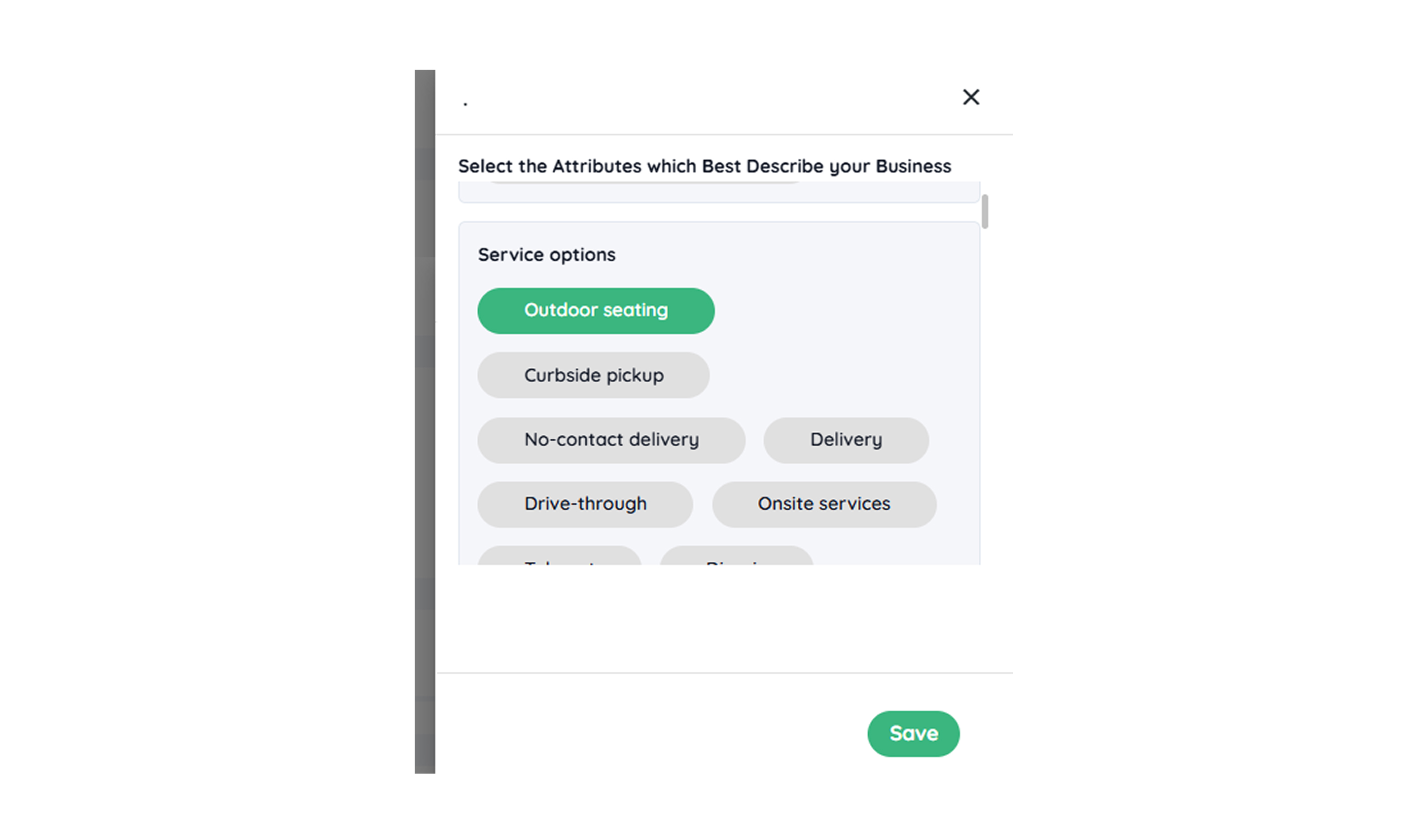
- Your attribute has been added successfully. To add another attribute, repeat steps 13 and 14.

Congratulations! You have successfully updated all the primary details for your Google My Business account in Quick Hub.