How to create & share a post and add FAQs for Google My Business in Quick Hub
You can now easily create and share posts for your Google My Business in Quick Hub. Follow the steps below.
-
Go to Quick Hub.
-
Then, go to Quick Review under Google My Business and click on Posts.
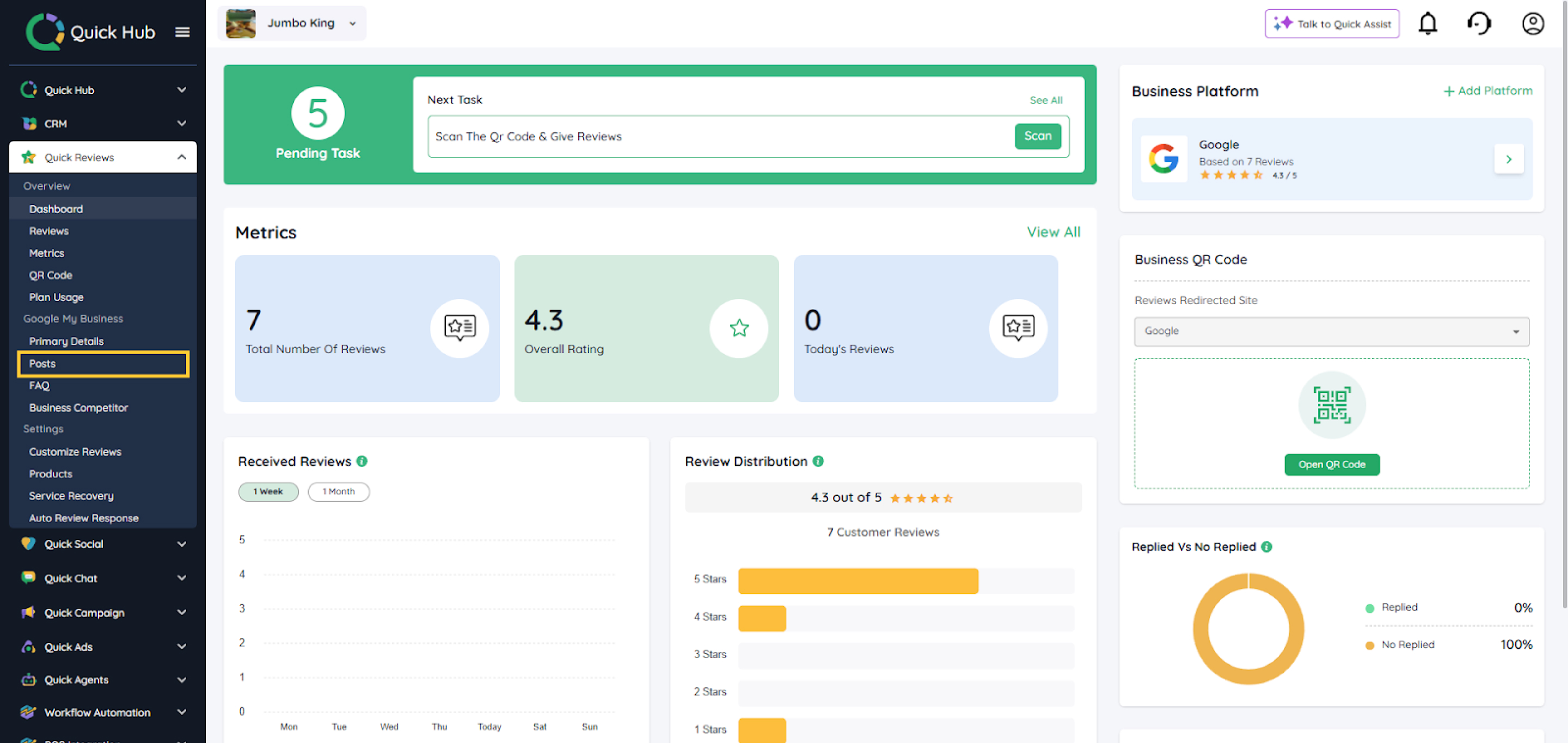
Here, you can create 3 types of posts: offer posts, update posts, and event posts. For this example, let us proceed with the event post.
- Select Event post, and click on Create New Post.
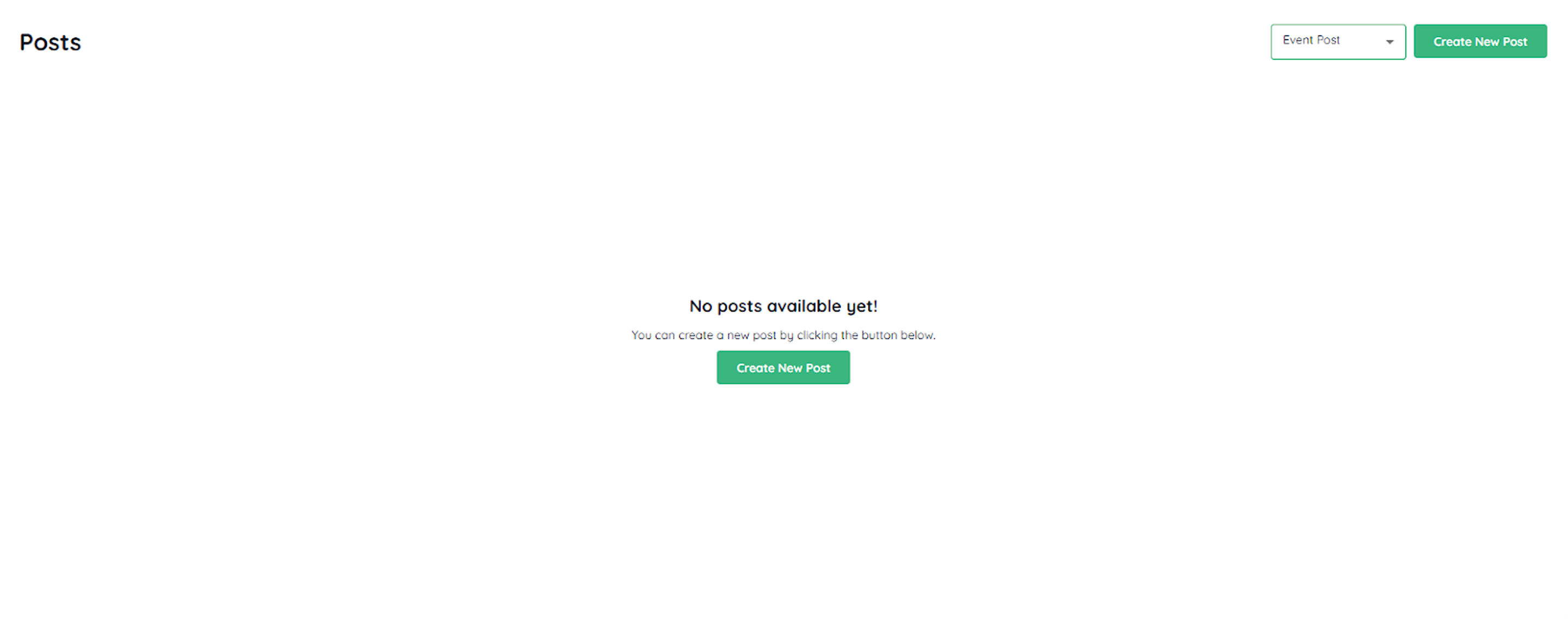
- On the next screen, enter all the details needed to create your post—such as the post image, event title, start and end date with time, event details, button text, and the button link. Once done, click on Preview.
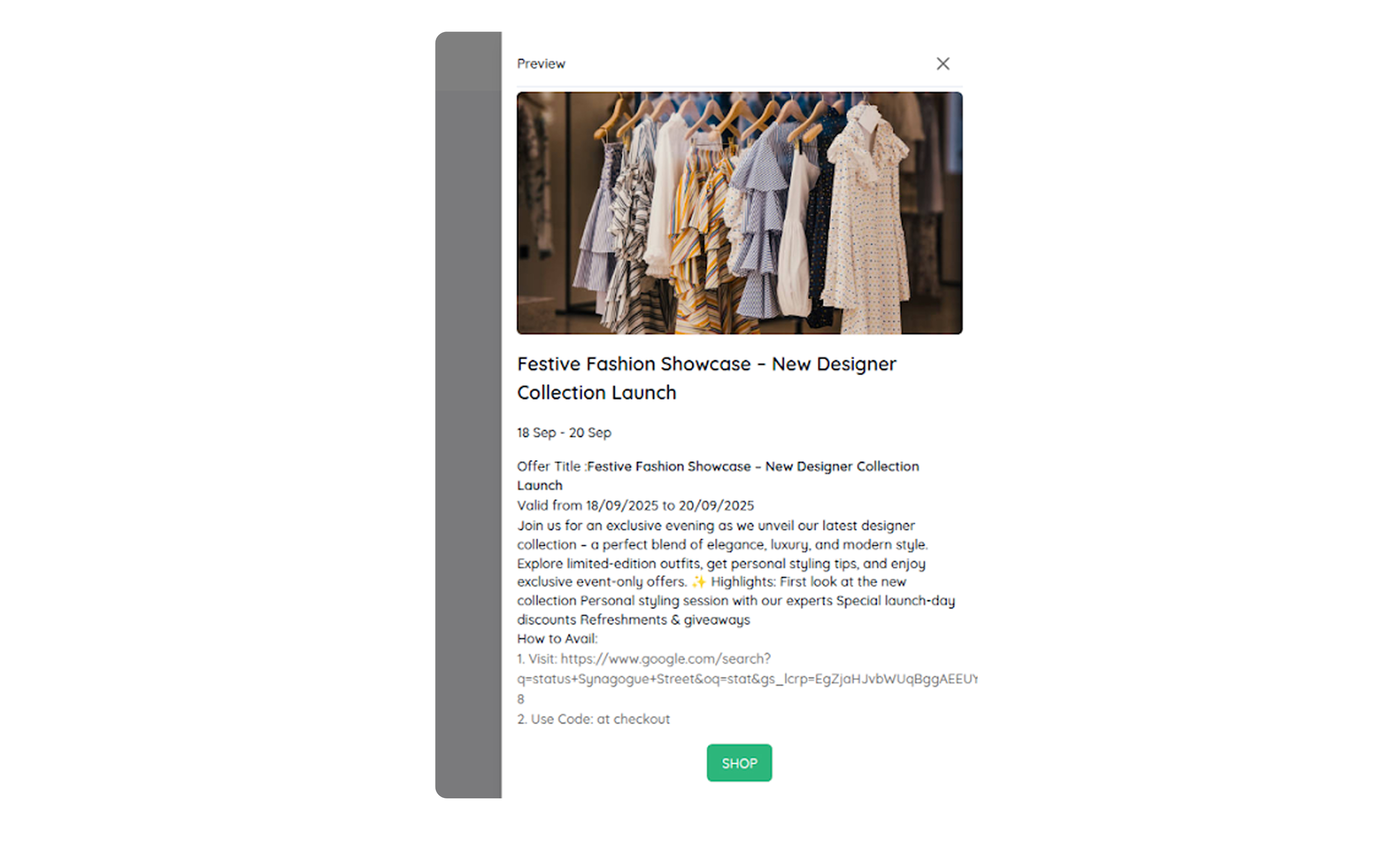
- After the preview, click on Post to publish the event post.
Your post has been shared on all the social channels linked to your Quick Hub account.
Customers often ask the same questions about your products and services. Replying to each one individually can be time-consuming. To save time, you can set up these repetitive queries as Frequently Asked Questions (FAQs). Here’s how you can do it:
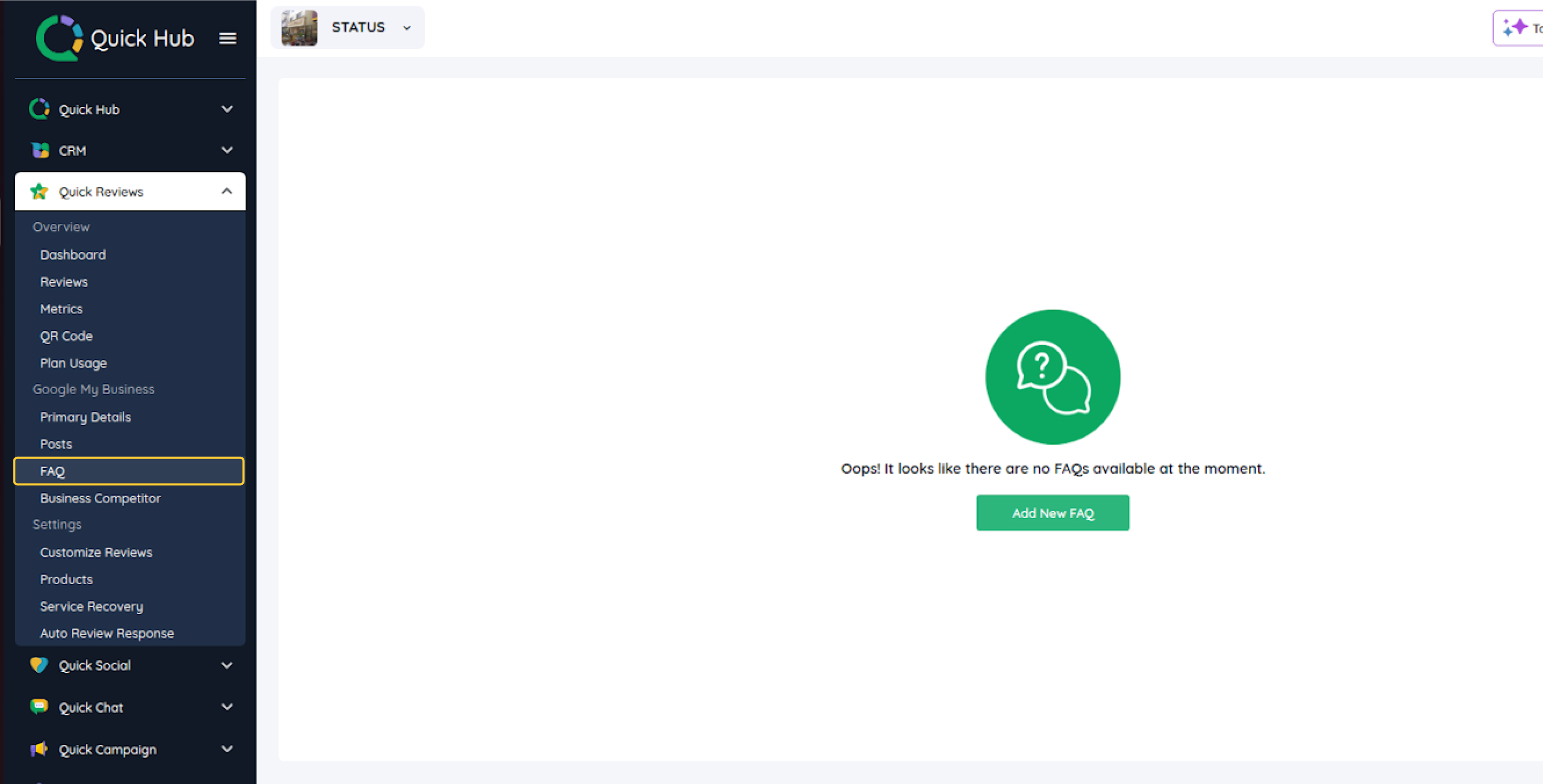
- Click on the FAQ option under Quick Reviews in the Google My Business section.
-
Click on Add New FAQ.
-
Then, add the question and its answer, and click on Add New FAQ.
Your customers will be able to see these FAQs on Google every time they search for your business.
Congratulations, you have successfully posted an event and have added the frequently asked questions to your Google My Business account.