How To Create a Campaign in Quick Hub
You can easily create a campaign in Quick Hub. Follow these steps to create your first campaign.
-
Go to Quick Hub.
-
On the left side, click on Quick Campaign.
-
The dashboard gives you an overview of the overall campaign metrics for your campaigns.
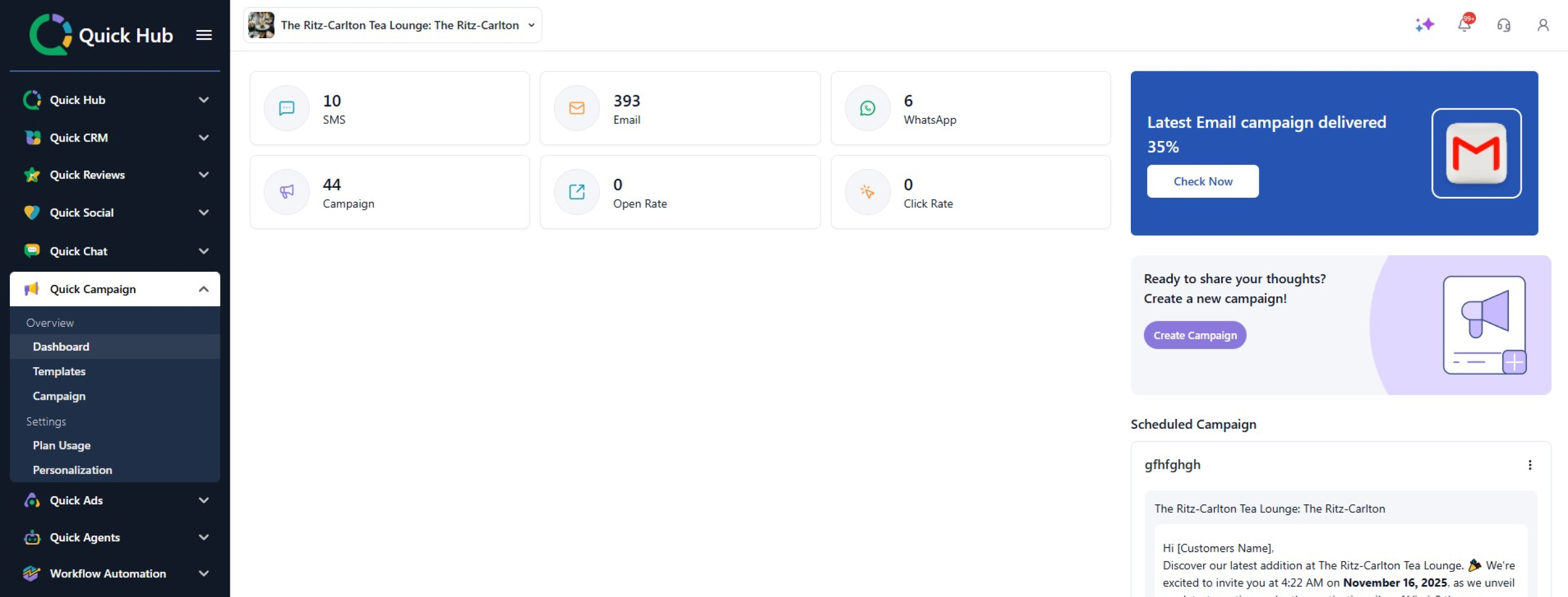
- To create a campaign, click on Create Campaign on the right side.
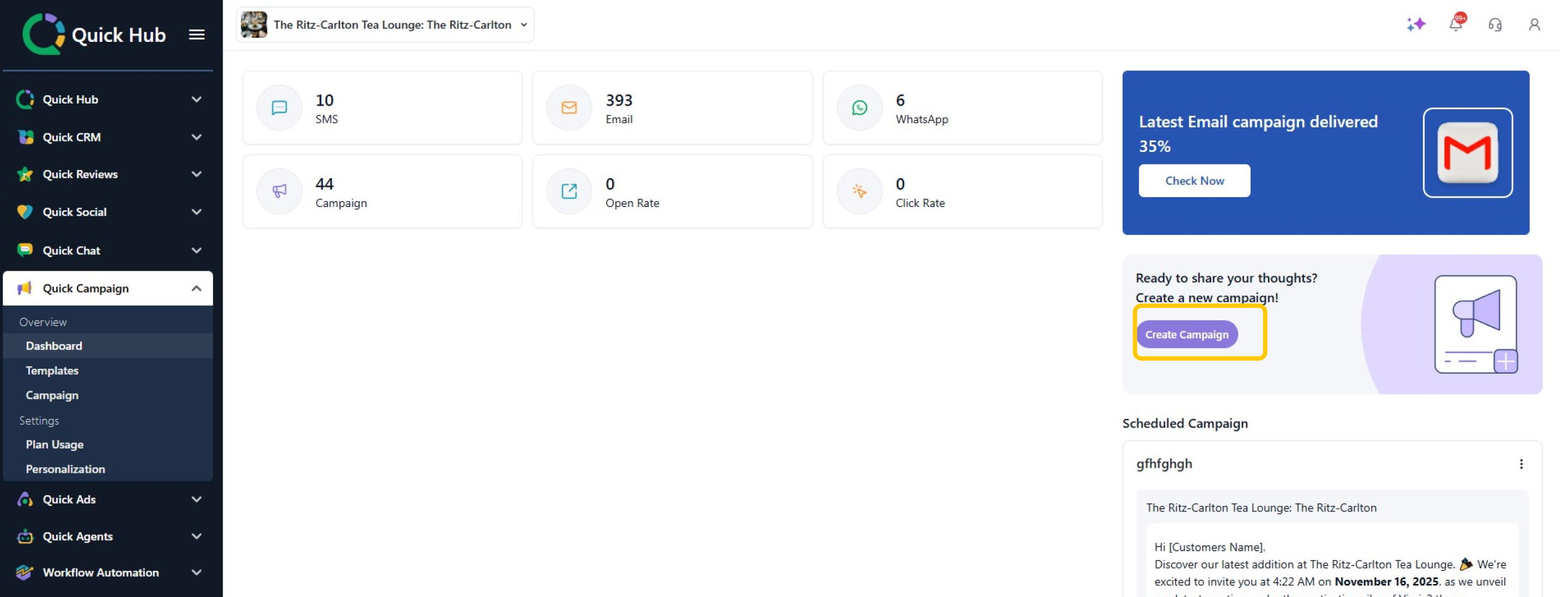
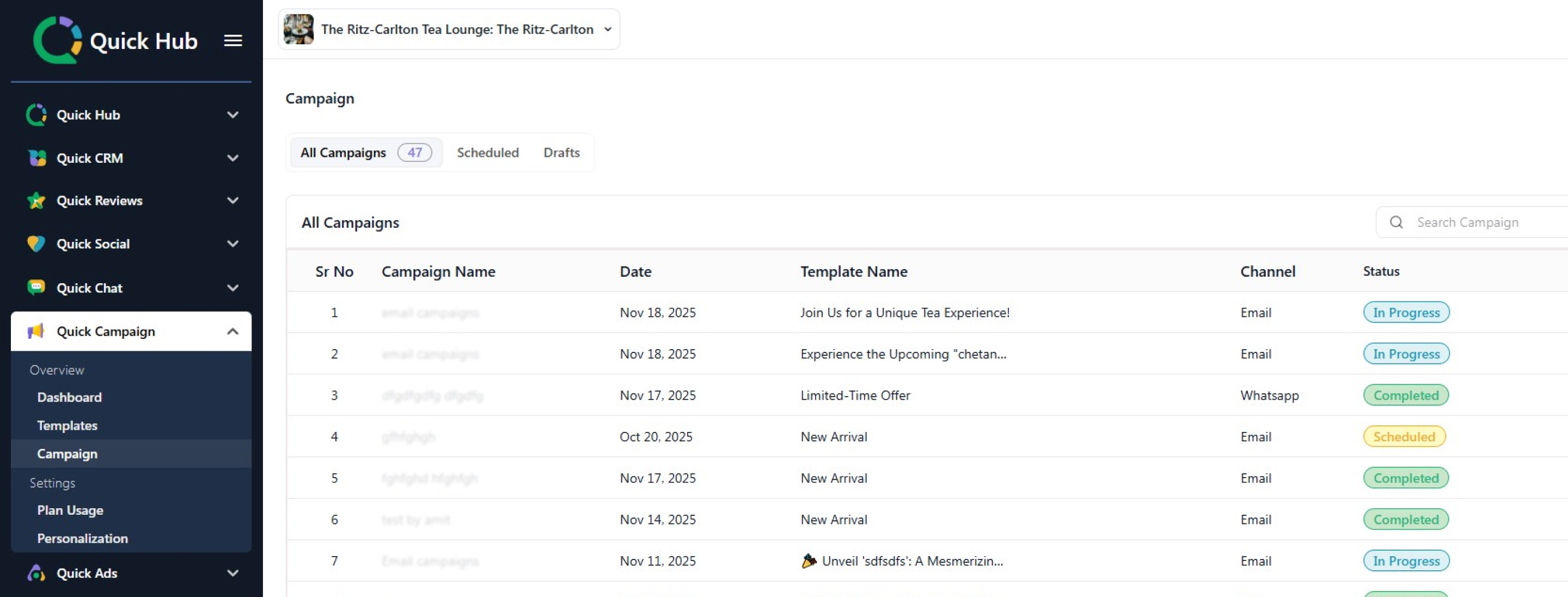
- Or, you can also navigate to the Campaign section in the left menu. Click on Create Campaign on the top right corner.
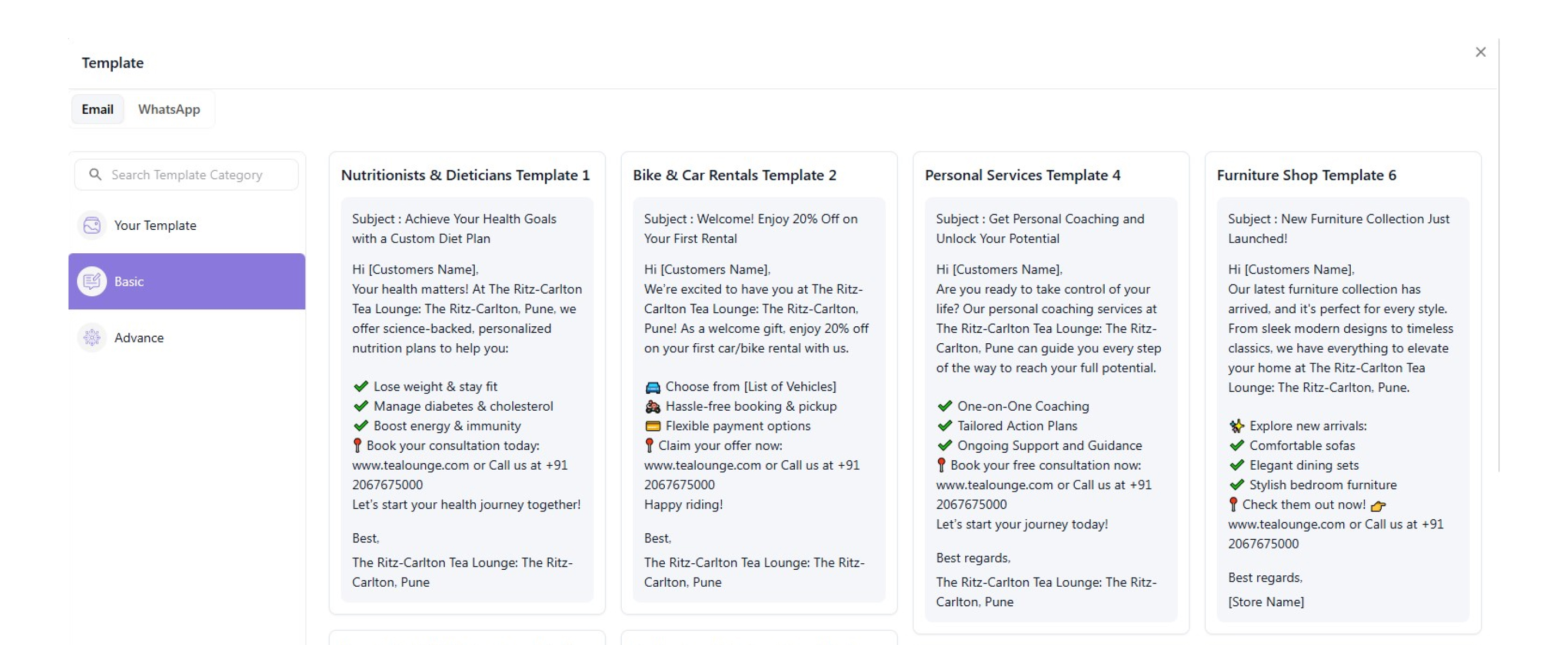
- You can choose to send a template via SMS, email, or WhatsApp—and pick from 100+ ready-made options tailored for every type of business.
-
For this example, let's choose Basic Personal Services Template 4.
-
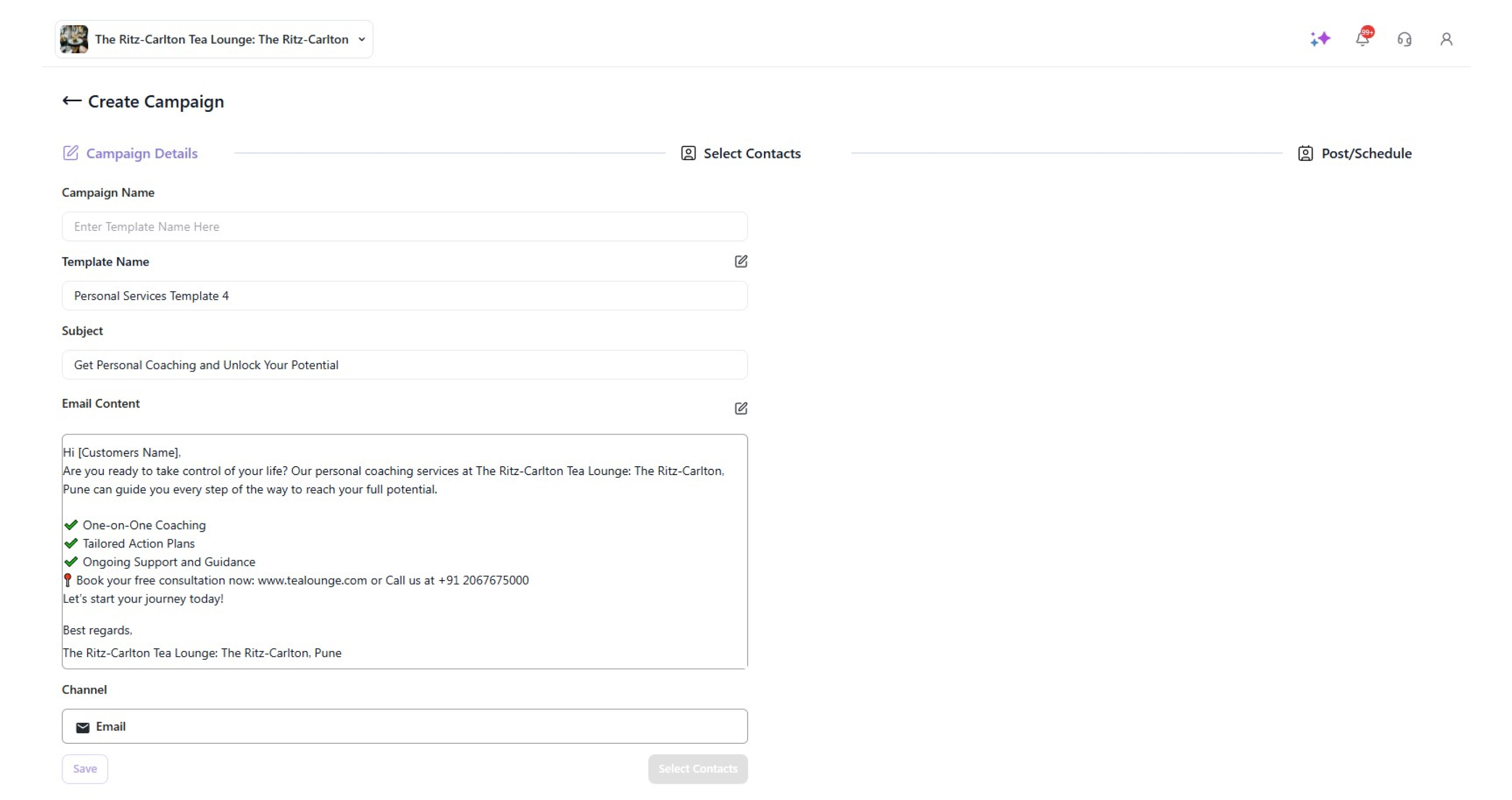
Add your campaign name, subject, and email content.
-
Then, click on Select Contact.
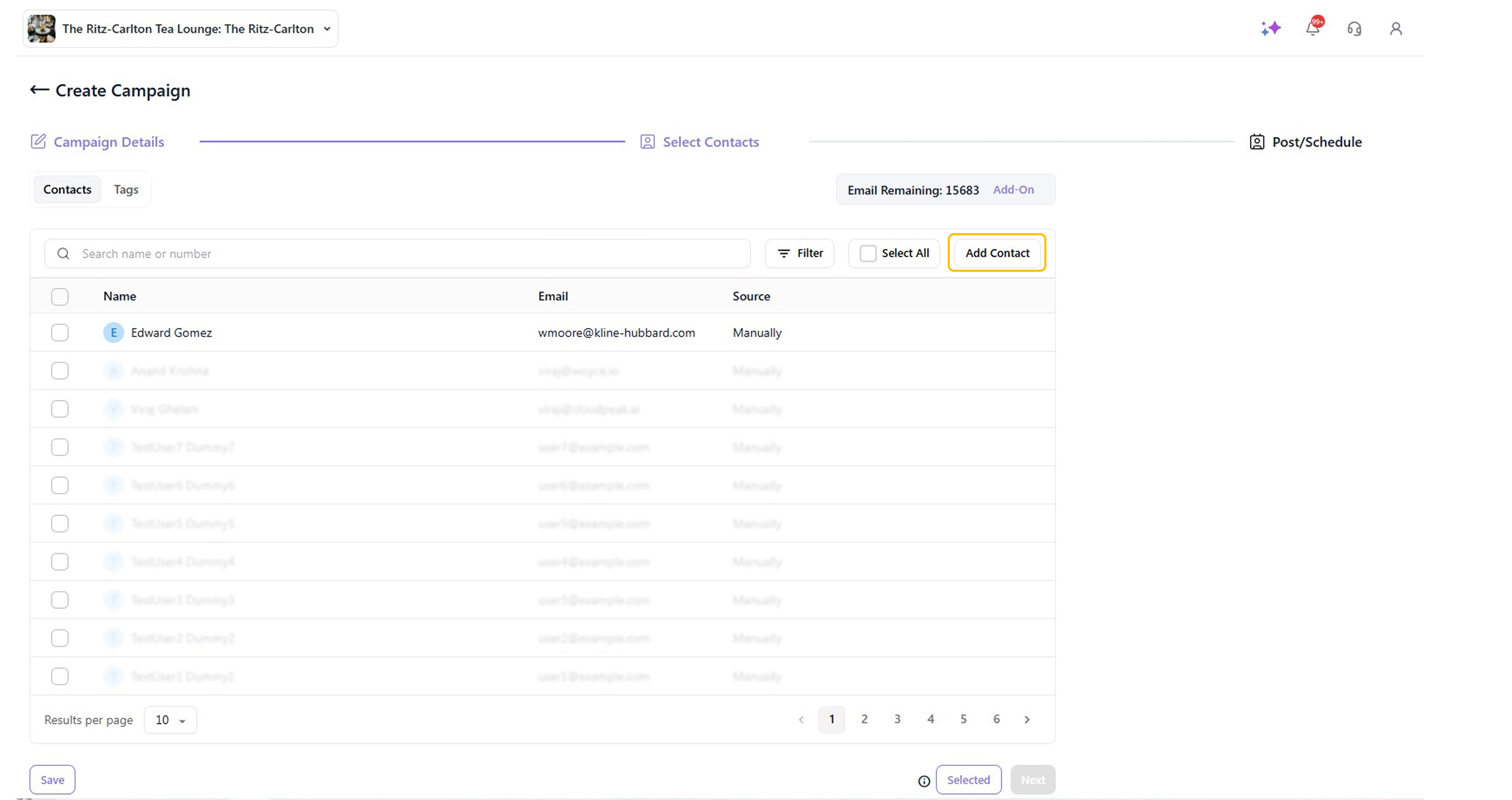
- To add a new contact, click on Add Contact.
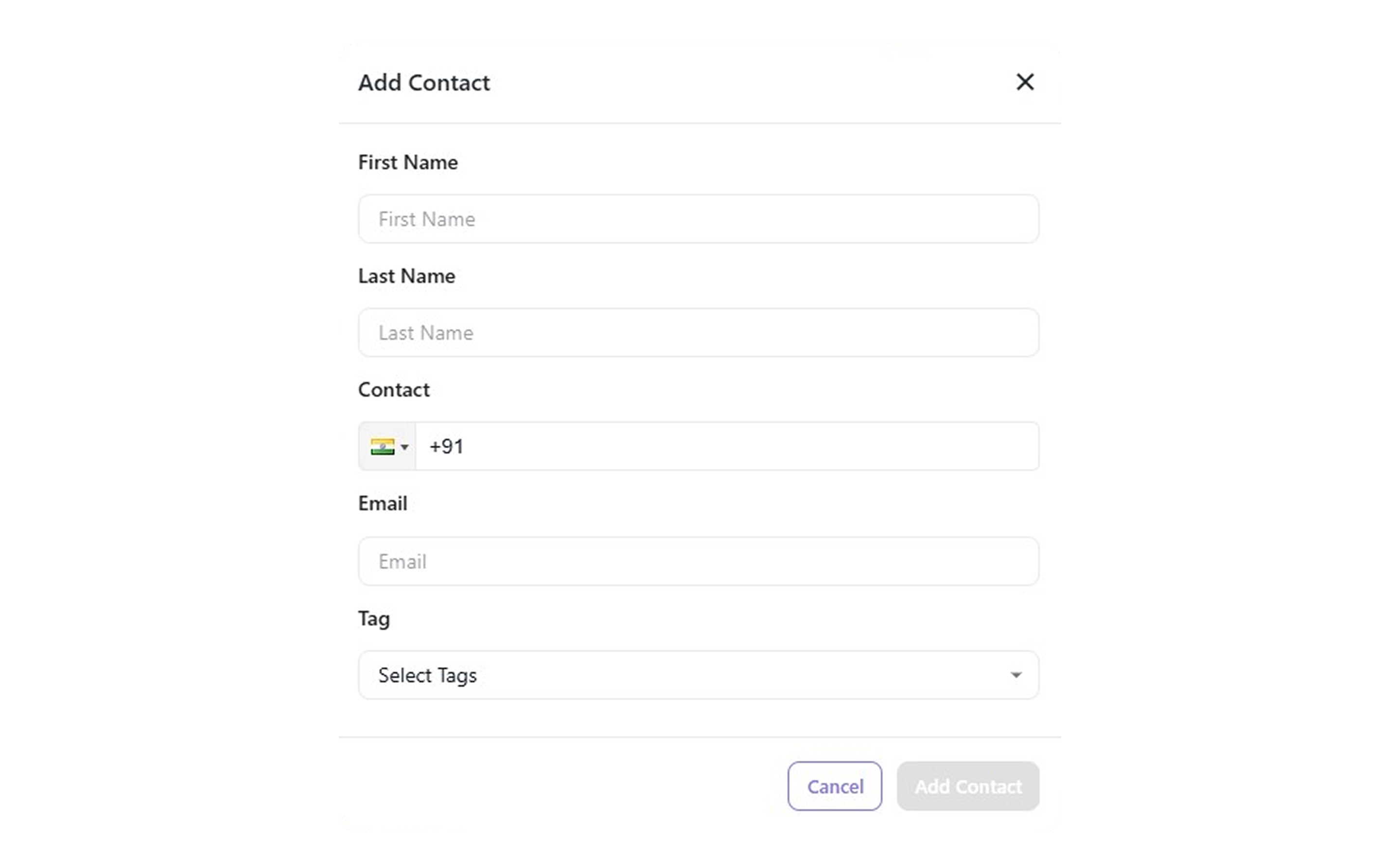
- Enter the contact details—first name, last name, phone number, and email—and assign a tag.
-
Then, click on Add Contact.
-
Select the contacts you want to share the campaign with, and click on Next.
-
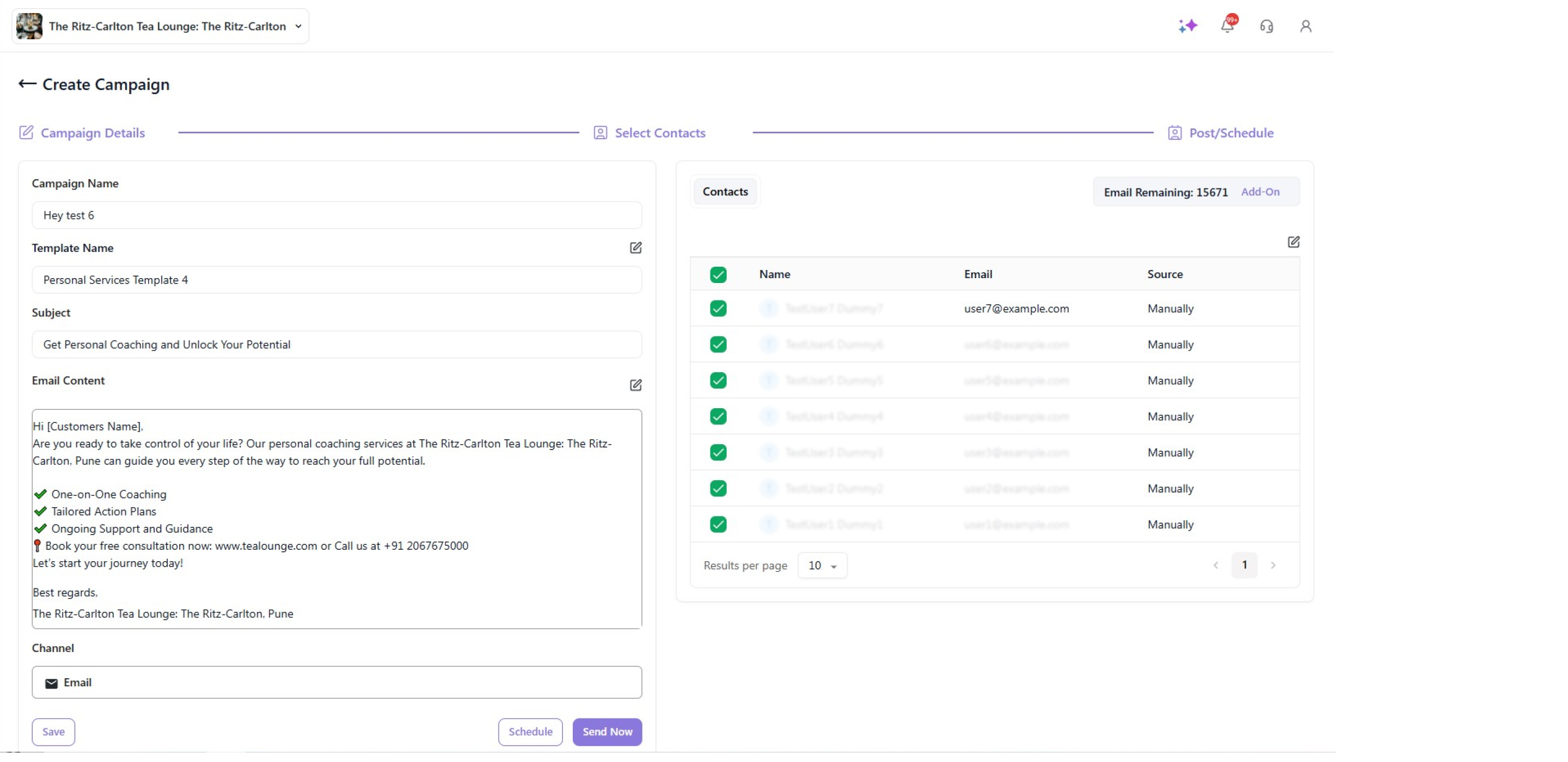
Click Send Now to send the campaign immediately, or schedule it for a later date and time.

-
Go to the Quick Campaign Dashboard tab to track your campaign's performance.
-
Now, let us view our completed, scheduled campaign and the drafts.
-
To do so, click on All campaigns. You will be able to see all the completed campaigns here.
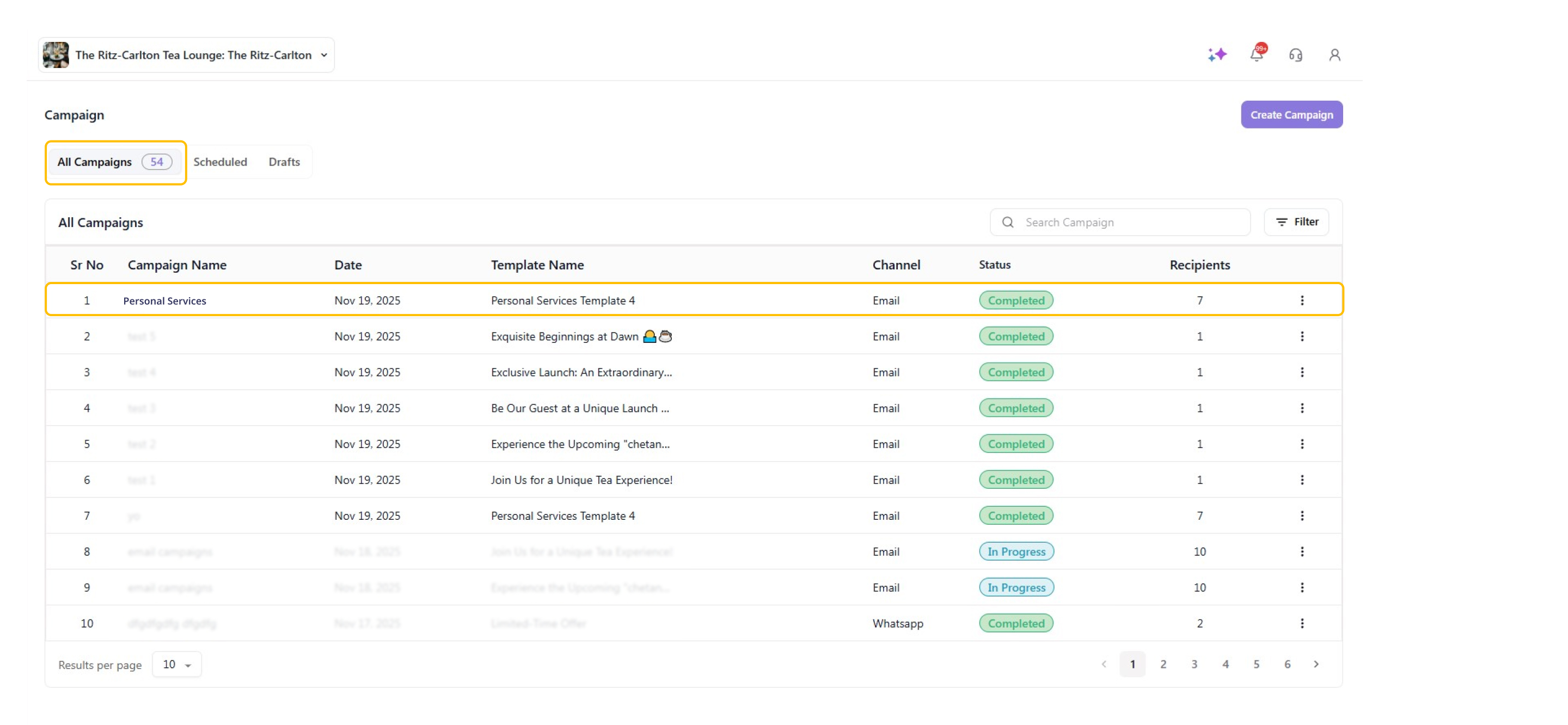
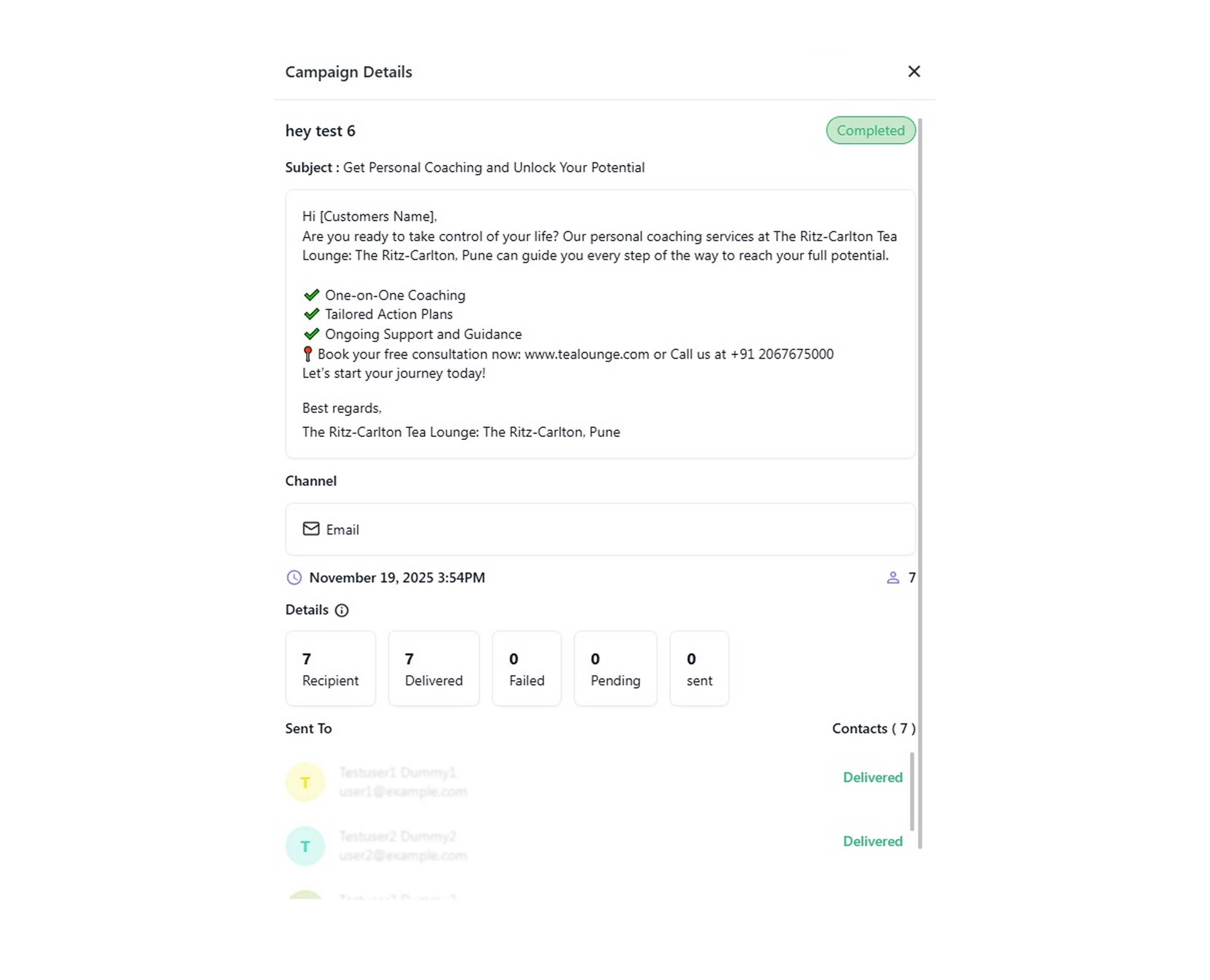
- Click on the campaign name you wish to see the details for. Details like campaign date and time, campaign status count, engagement, and the sender list are visible in this section.
-
To view the scheduled campaign, click on Scheduled.
-
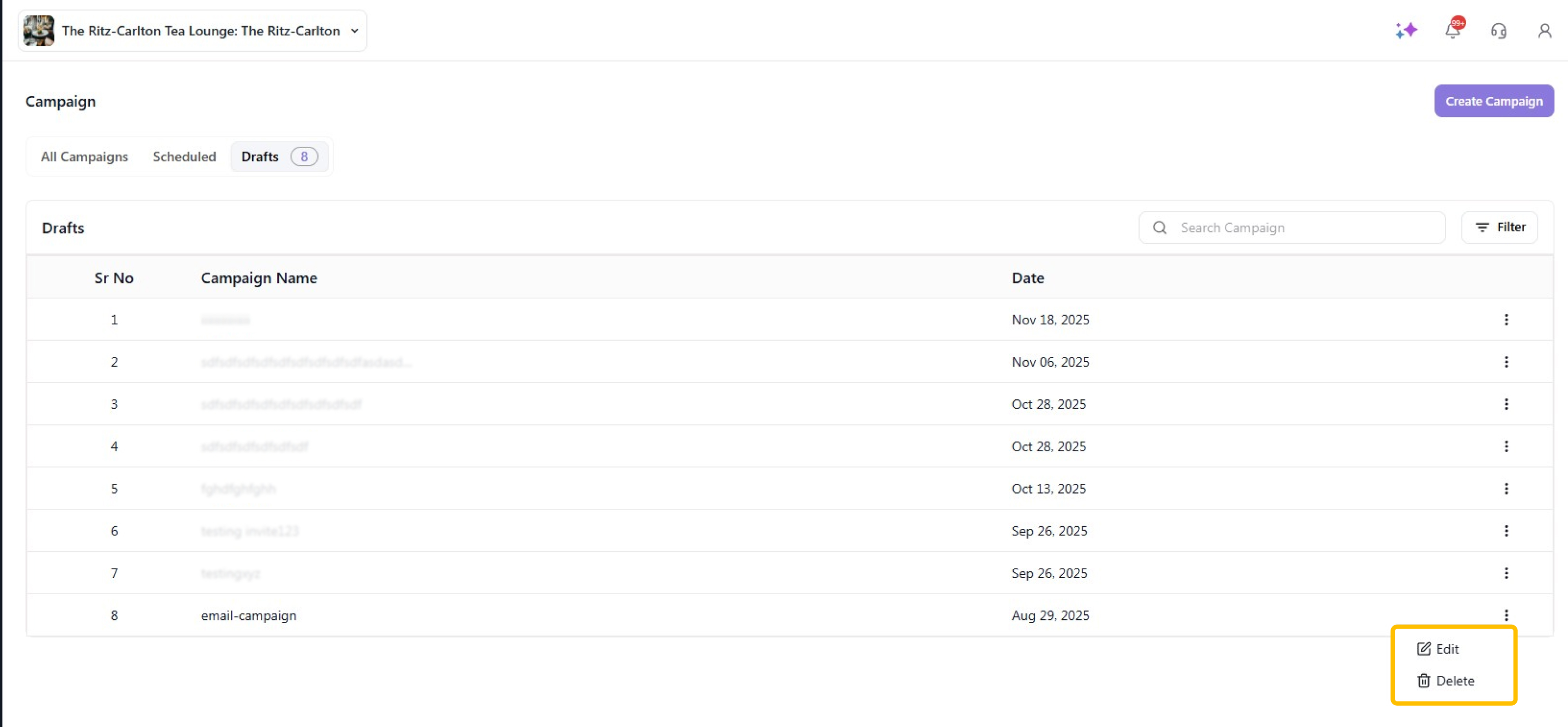
The draft campaigns are visible in the Draft option.
-
To delete a draft, click on the Delete icon, and click on Delete.

- To edit a campaign in the draft section, click on the three dots and then click on the Edit button.
- Here, you can edit the campaign name, template, channel, contacts, and tags.
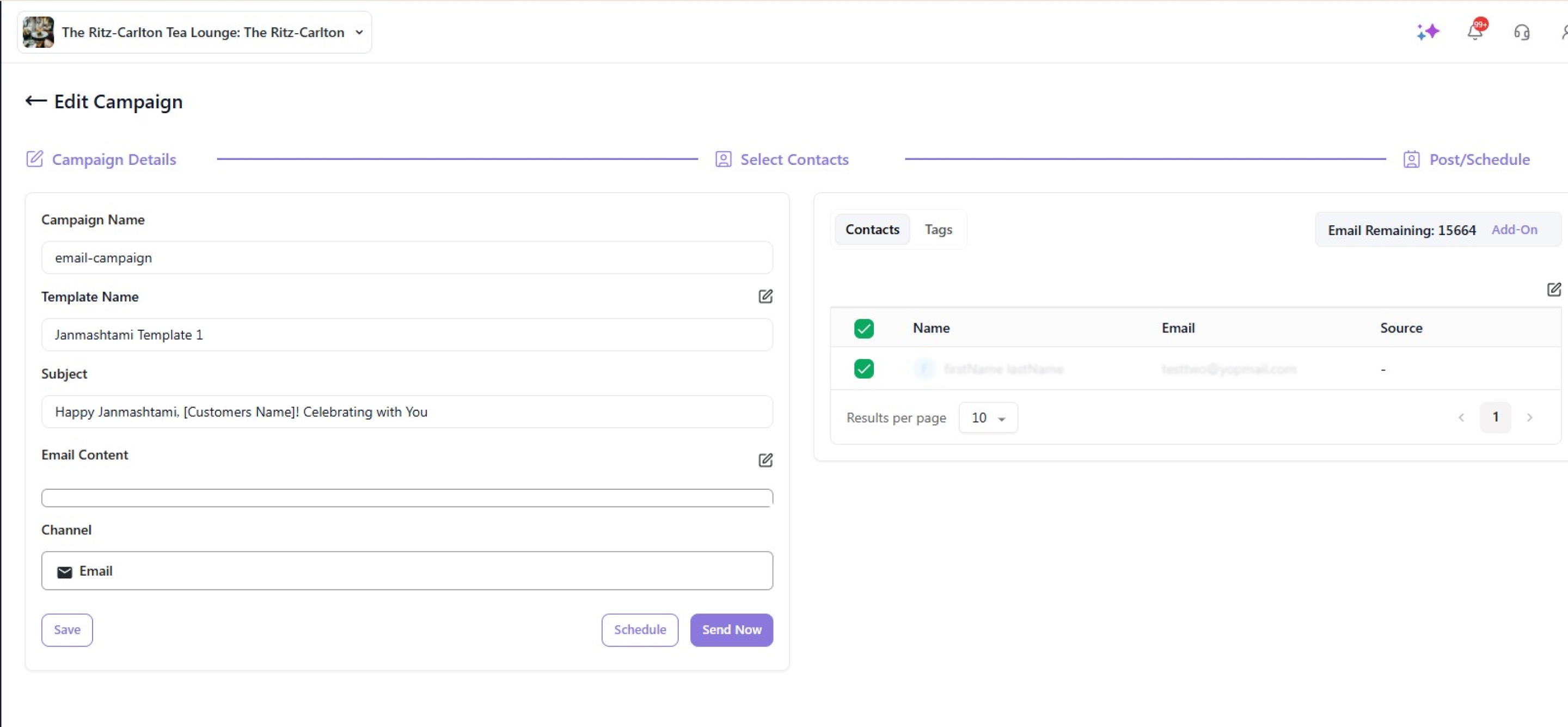
- To schedule the campaign, click on Schedule, or if you want to publish it now, click on Send Now.