How to Connect Social Channels and Create, Schedule, and Edit Posts on Quick Hub
-
Go to Quick Hub.
-
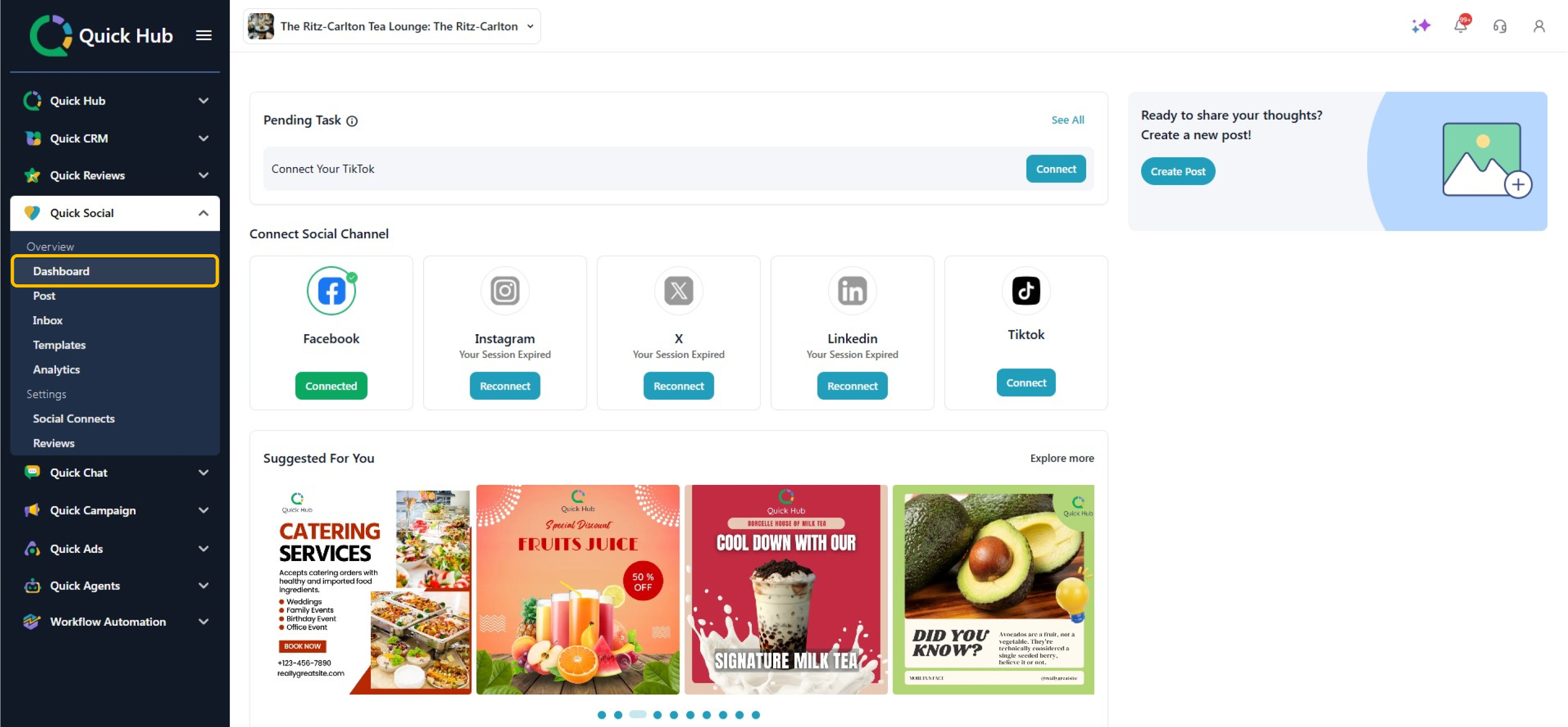
Navigate to Quick Social and click Dashboard.
-
Click Connect under each social channel to link it with Quick Hub, or use Pending Tasks or Social Connects to connect multiple channels at once.
-
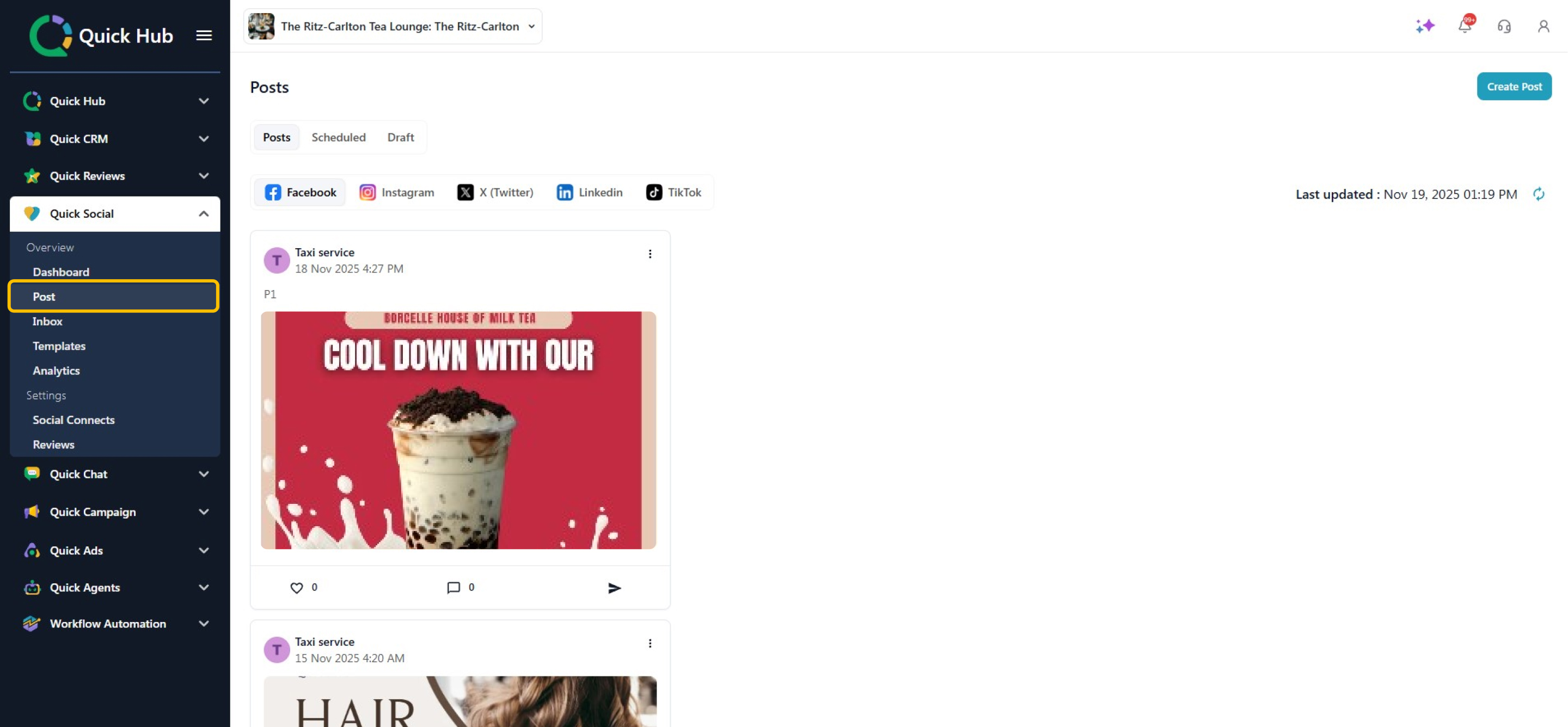
To create a post, click Create Post on the right side of the screen, or select Post from the left menu bar and click Create Post.
-
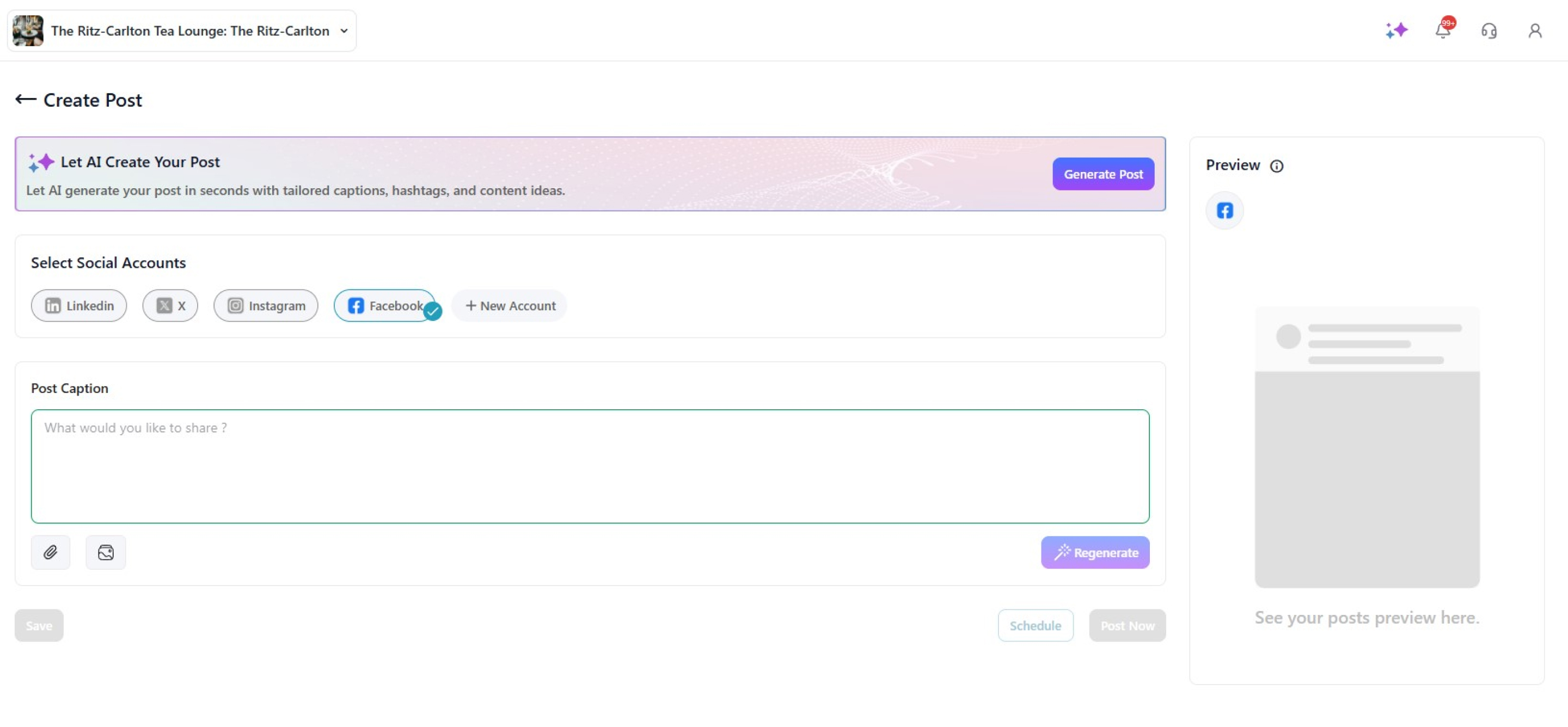
You can create a post using AI or manually. For this example, we will use the AI option.
-
Click Generate Post.
- Enter your keywords, select your desired post size, and specify the number of variants you want to generate.
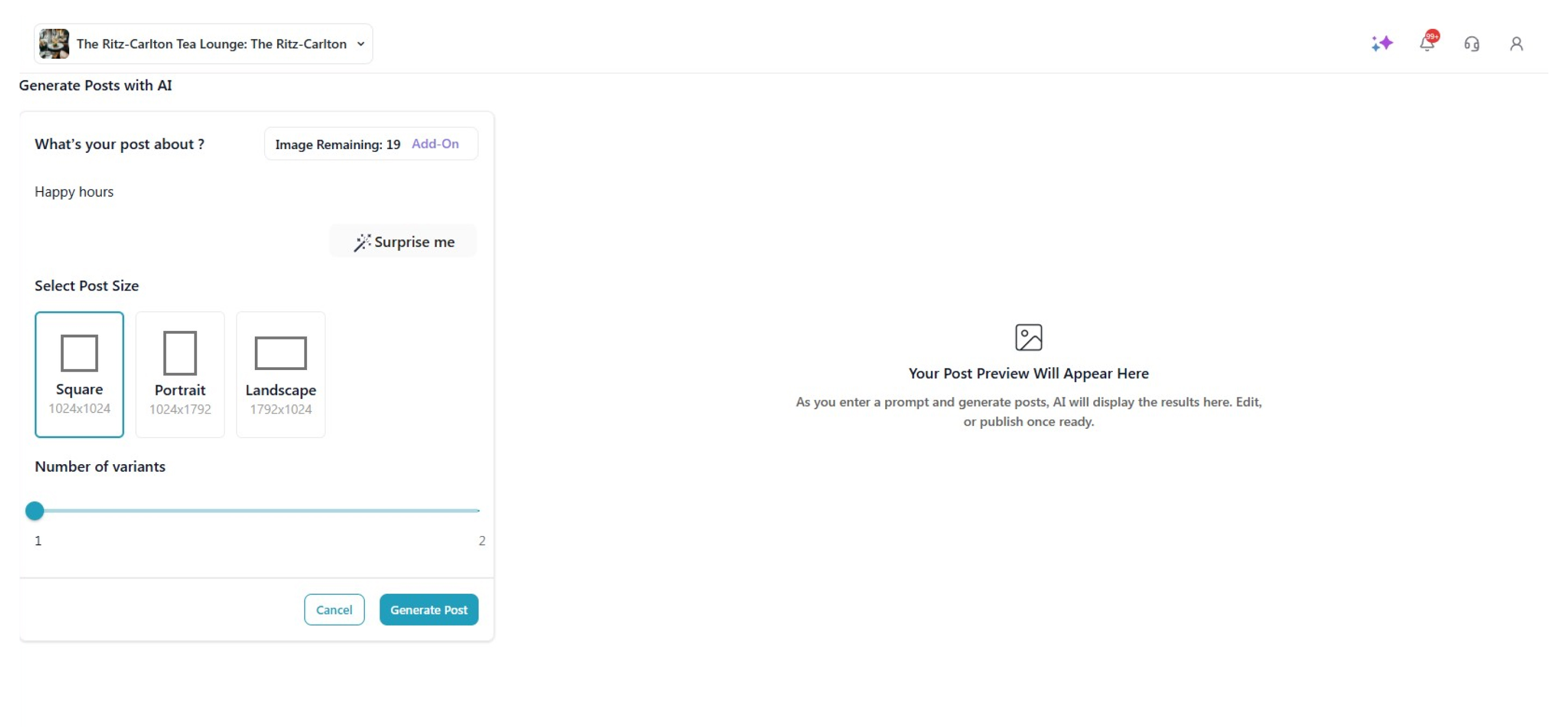
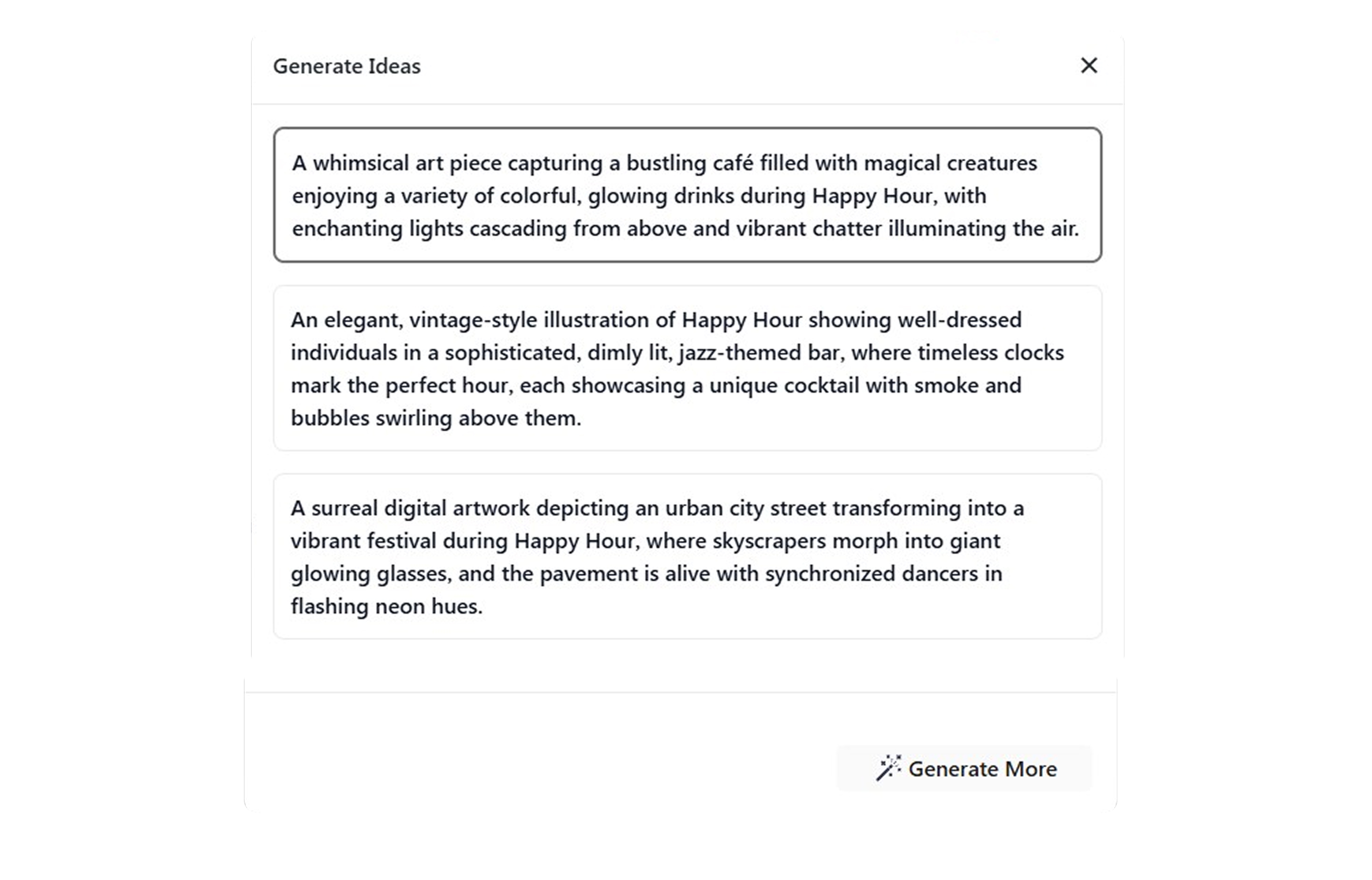
- Click Surprise Me to receive a suggested post prompt.
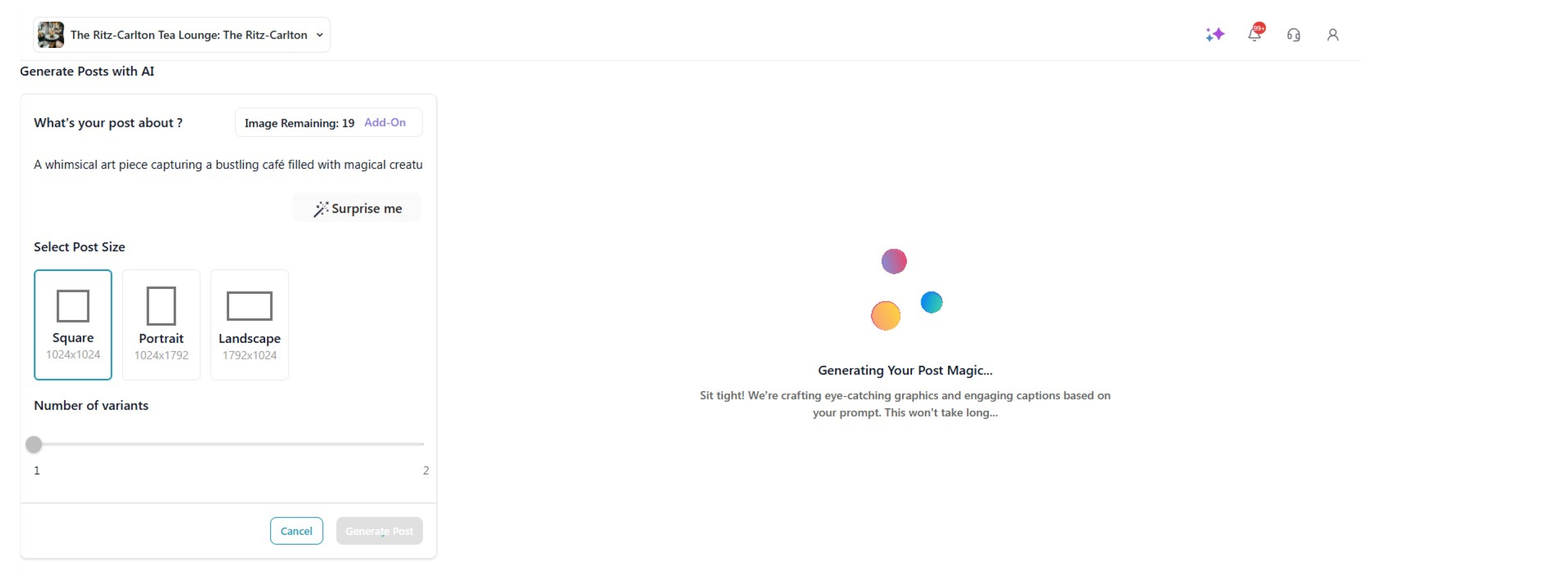
- Click Generate Post to create your content.
-
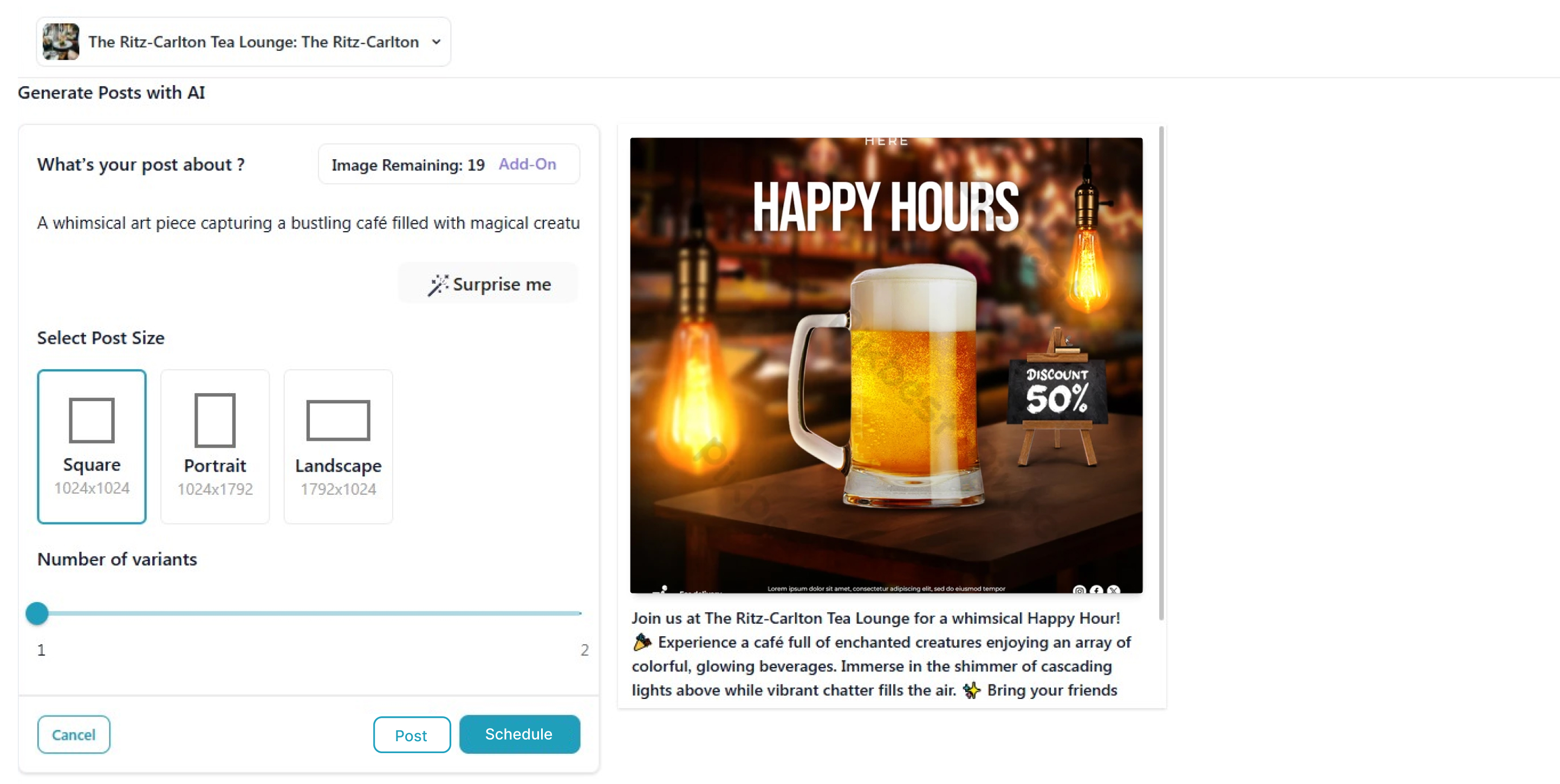
Your post is now ready to use.
-
To schedule the post for later, click the Schedule option. If you prefer to publish immediately, click Post Now. Your post will be automatically shared across all social channels linked to your Quick Hub account.
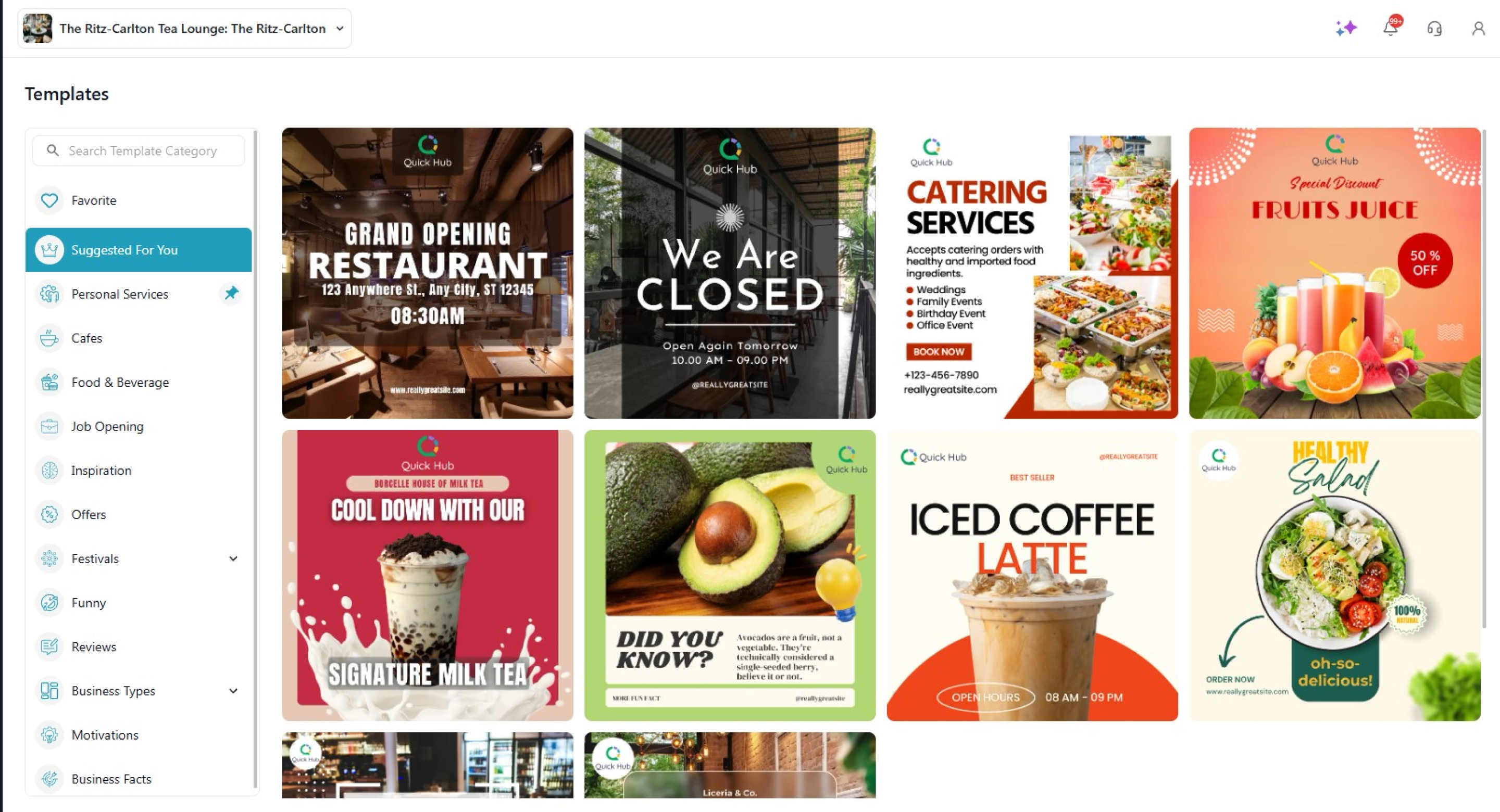
- Alternatively, you can select a template from our library of over 100 templates.